
MP3 in WAV konvertieren: Vollstaendige Anleitung
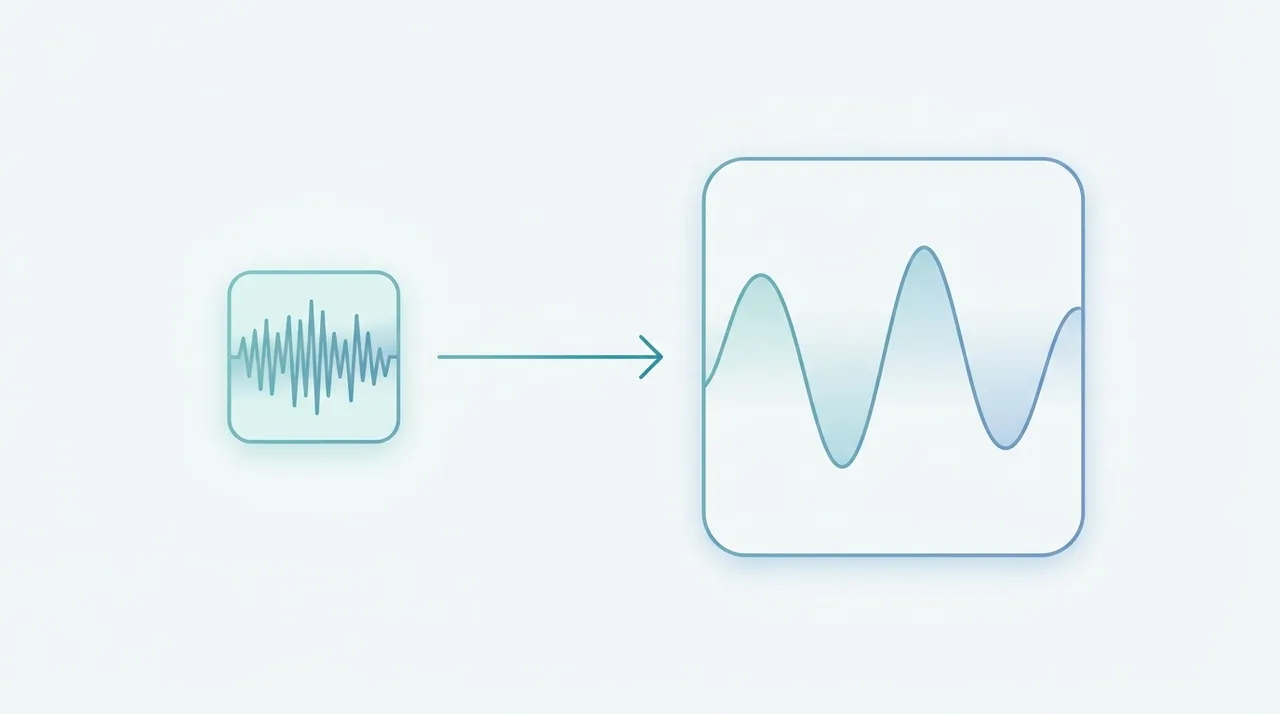
Beim Konvertieren von MP3 zu WAV wird deine komprimierte, verlustbehaftete MP3 in eine rohe, unkomprimierte PCM-Datei dekodiert, die Audioeditoren und DAWs ohne weiteren Qualitätsverlust bearbeiten können. Du tust das, um ein stabiles, bearbeitungsfertiges Master zu erhalten, strenge Formatvorgaben zu erfüllen (CD brennen, Rundfunk, Sampling) oder Werkzeuge zu versorgen, die MP3 ablehnen. Wichtig: Die Konvertierung stellt keine Details wieder her, die der MP3-Encoder bereits verworfen hat, sie friert lediglich die aktuelle Qualität in einem verlustfreien Container ein, damit wiederholte Bearbeitungen und Speichervorgänge nie neue Kompressionsartefakte hinzufügen. Im Folgenden erklären wir, wann und warum du konvertieren solltest, die Kompromisse und die wichtigsten Einstellungen.
Jetzt ausprobieren — Kostenlos →Dieser Leitfaden beschreibt Formatfunktionen und Einstellungen verschiedener Programme. In WeLoveConvert wählen Sie das Zielformat und bei unterstützten Bildern die Qualität. Codec, Bitrate, verlustfreies WebP und TIFF-Seitenauswahl sind in der Oberfläche nicht einstellbar. Vergleichen Sie das Ergebnis und behalten Sie das Original.
summarizeDas Wichtigste in Kürze
- check_circleMP3 zu WAV ist ein Container-Wechsel von verlustbehaftet zu verlustfrei, er bewahrt die aktuelle Qualität, kann aber vom MP3-Encoder entfernte Frequenzen nicht wiederherstellen.
- check_circleDer eigentliche Grund zu konvertieren ist Workflow-Sicherheit: WAV übersteht unbegrenzte Bearbeitungen und Speichervorgänge ohne Generationsverlust, während erneutes Speichern von MP3 das Audio jedes Mal verschlechtert.
- check_circleRechne mit Dateien, die etwa 5 bis 10x größer sind, eine 4-MB-MP3 wird meist zu einer 40 bis 50 MB großen WAV bei 44,1 kHz/16 Bit.
- check_circlePasse dich an die Quelle an: behalte 44,1 kHz / 16 Bit / dieselben Kanäle, außer ein Projekt (Video mit 48 kHz, Mastering mit 24 Bit) verlangt etwas anderes.
Vorteile und Grenzen der Konvertierung zu WAV
check_circleVorteile
- addKein Generationsverlust: bearbeite, verarbeite und speichere beliebig oft ohne neue Artefakte.
- addUniversell akzeptiert von DAWs, Editoren, Samplern und CD-Brennsoftware.
- addWird einmal dekodiert und spielt dann ohne CPU-Dekompressionsaufwand ab.
- addErfüllt strenge PCM-Vorgaben für CD, Rundfunk und Spiele-Audio.
- addEinfacher, gut dokumentierter Container, leicht sample-genau zu schneiden und zu analysieren.
cancelGrenzen
- removeStellt die vom MP3-Encoder bereits verworfene Qualität nicht wieder her.
- removeDateien rund 5 bis 10x größer, verbrauchen schnell Speicher und Bandbreite.
- removeSchwacher Metadaten-Support, ID3-Tags der MP3 gehen meist verloren.
- removeWegen der Größe unpraktisch für tragbare Player und Streaming.
Wann (und Warum) MP3 zu WAV Konvertieren
Konvertiere MP3 zu WAV immer dann, wenn ein Werkzeug oder Workflow unkomprimiertes PCM benötigt, oder wenn du ein sicheres Master zum wiederholten Bearbeiten willst. Das sind die häufigsten praktischen Auslöser:
- Du bearbeitest in einer DAW oder einem Videoeditor: lade eine WAV, damit Schnitte, Fades und Effekte das Audio nie neu komprimieren. Nutze unseren kostenlosen Online-Konverter, um Clips vorher vorzubereiten.
- Du brennst eine Audio-CD: Red-Book-CDs erfordern PCM mit 44,1 kHz / 16 Bit, genau das liefert WAV.
- Ein Sampler, eine Game-Engine oder ein Hardwaregerät lehnt MP3 ab und verlangt rohe PCM-Eingabe.
- Du masterst oder restaurierst Audio und willst null Codec-Einfluss zwischen den Verarbeitungsstufen, siehe was WAV ist für die Format-Interna.
- Du brauchst eine Zwischenstufe vor einem anderen verlustfreien Ziel, zum Beispiel kannst du später WAV zu FLAC konvertieren, um die Datei verlustfrei zu verkleinern.
- Du hast eine einzelne MP3 erhalten, der Rest der Session ist aber unkomprimiert, und du willst alle Spuren im selben Format, erfahre mehr über das MP3-Format.
MP3 vs WAV vs FLAC: Welches Ziel Passt?
WAV ist das richtige Ziel zum Bearbeiten, aber wenn die Größe zählt, bewahrt eine verlustfreie FLAC-Datei identische Qualität bei halber Größe. Diese Tabelle stellt deine Quelle den beiden häufigsten Zielen gegenüber.
| Feature | MP3 (Quelle) | WAV (Ziel) | FLAC (Alternative) |
|---|---|---|---|
| Kompressionstyp | Verlustbehaftet | Unkomprimiertes PCM | Verlustfrei komprimiert |
| Größe, 4-Min-Titel | ~4 MB (128 kbps) | ~40 MB | ~20 MB |
| Qualität nach Bearbeitung | Verschlechtert sich pro Speichern | Kein Generationsverlust | Kein Generationsverlust |
| DAW-/Editor-Support | Beim Import dekodiert | Nativ, sofort | Nativ in den meisten |
| Metadaten / Tags | Umfangreiche ID3 | Minimal (nur BWF) | Umfangreiche Vorbis-Kommentare |
| Beste Nutzung | Streaming, Wiedergabe | Bearbeitung, Mastering, CD | Verlustfreie Archivierung |
Den aktuellen WeLoveConvert-Ablauf verwenden
- 1
Ausgabe wählen
Wählen Sie die MP3-Datei auf Ihrem Gerät, fahren Sie zur Konfiguration fort und bestätigen Sie WAV als Zielformat. Bewahren Sie das Original unverändert auf.
- 2
Lokal konvertieren
Lassen Sie den Tab während der Verarbeitung geöffnet. Die Engine wird möglicherweise beim ersten Einsatz heruntergeladen. Große Dateien und inkompatible Quellcodecs können an Speichergrenzen oder der Decoder-Unterstützung des Browsers scheitern.
- 3
Herunterladen und prüfen
Laden Sie die fertige WAV-Datei herunter und öffnen Sie sie in der Zielanwendung. Prüfen Sie Inhalt, Dateigröße und gegebenenfalls Dauer, Ton, Abmessungen und Transparenz. Ein Formatwechsel garantiert keine kleinere Datei.
Verfügbare Einstellungen in diesem Konverter
Wählen Sie das Zielformat. Die Kodierung erfolgt automatisch; Bitrate, Abtastrate, Bittiefe, VBR, Kanäle, Schnitt und Audiospur sind in diesem Ablauf nicht einstellbar. Die Quelle muss Ton enthalten: Ein stummes Video erhält durch Konvertierung keinen Ton. Die Umwandlung in ein verlustfreies Format stellt verworfene Details nicht wieder her. Hören Sie Anfang und Ende der heruntergeladenen Datei an.
Verbessert die Konvertierung von MP3 in WAV die Qualitaet?
Nein. Die Konvertierung von MP3 in WAV stellt keine Audioqualitaet wieder her, die waehrend der MP3-Komprimierung verloren ging. Sobald Frequenzen vom MP3-Encoder verworfen wurden, koennen sie nicht wiederhergestellt werden. Die resultierende WAV-Datei enthaelt dieselben Audiodaten wie die MP3, jedoch in einem unkomprimierten Format gespeichert. Der Hauptvorteil besteht darin, weiteren Qualitaetsverlust zu vermeiden: Das Bearbeiten und erneute Speichern einer WAV-Datei verschlechtert die Qualitaet nicht, waehrend das erneute Kodieren einer MP3 mit jedem Speichervorgang zusaetzliche Komprimierungsartefakte einfuehrt. Dies macht die MP3-zu-WAV-Konvertierung trotz des fehlenden Qualitaetsgewinns fuer Audio-Bearbeitungsablaeufe wertvoll.
Haeufige Probleme bei der MP3-zu-WAV-Konvertierung
Die WAV-Ausgabedatei ist extrem gross
Das ist normal. WAV-Dateien sind unkomprimiert und etwa 10-mal groesser als MP3. Eine 5-MB-MP3 kann eine 50-MB-WAV erzeugen. Stellen Sie sicher, dass Sie ausreichend Speicherplatz haben.
Klick- oder Knackgeraeusche in der WAV-Ausgabe
Dies deutet meist auf eine beschaedigte MP3-Quelldatei hin. Laden Sie das Original-MP3 erneut herunter oder verwenden Sie einen anderen Decoder, der beschaedigte Frames besser handhabt.
WAV-Datei hat keinen Ton, aber korrekte Dauer
Die MP3 verwendet moeglicherweise eine Codec-Variante, die vom Decoder nicht unterstuetzt wird. Versuchen Sie ein Tool, das alle MP3-Standards einschliesslich MPEG-1 Layer III und MPEG-2 Layer III unterstuetzt.
Abtastraten-Konflikt in der Bearbeitungssoftware
Der aktuelle Ablauf wählt das Kodierungsprofil automatisch. Bitrate, CRF, Abtastrate, Bittiefe, Kanäle, Remux, Untertitel und Audiospuren sind hier nicht auswählbar. Bewahren Sie das Original auf und prüfen Sie die gespeicherte Ausgabe in der Zielanwendung. Verlustfreie Konvertierung ist nicht garantiert.
Häufig gestellte Fragen
Ist WAV von besserer Qualitaet als MP3?
WAV speichert Audio ohne Komprimierung und bewahrt somit alle aufgezeichneten Daten. Eine aus einer MP3 konvertierte WAV enthaelt jedoch nur das, was die MP3 hatte. WAV ist nur dann von besserer Qualitaet, wenn es aus einer urspruenglichen unkomprimierten Quelle erstellt wurde.
Warum MP3 in WAV konvertieren, wenn die Qualitaet nicht verbessert wird?
Der Hauptgrund ist die Vermeidung von Generationsverlust waehrend der Bearbeitung. Jedes Mal, wenn Sie eine MP3 bearbeiten und erneut speichern, verschlechtert sich die Qualitaet. WAV kann wiederholt bearbeitet und gespeichert werden, ohne dass Qualitaet verloren geht.
Wie viel groesser ist eine WAV-Datei im Vergleich zu MP3?
Eine WAV-Datei ist typischerweise 5-10-mal groesser als das entsprechende MP3. Ein 4-minuetiges Lied bei 128 kbps MP3 ist etwa 4 MB, dasselbe Lied als WAV bei 44.1 kHz/16-Bit etwa 40 MB.
Kann ich WAV-Dateien auf meinem Telefon oder tragbaren Player verwenden?
Die meisten modernen Smartphones und Player unterstuetzen WAV, aber die grossen Dateigroessen verbrauchen schnell Speicherplatz. WAV eignet sich am besten fuer Desktop-Bearbeitung statt fuer mobiles Hoeren.
Welche Abtastrate sollte ich fuer die WAV-Ausgabe verwenden?
Verwenden Sie 44100 Hz fuer Musik oder allgemeines Audio. Verwenden Sie 48000 Hz, wenn die WAV in der Videoproduktion verwendet wird, da 48 kHz der Standard fuer Video-Audio ist.
Gehen bei der MP3-zu-WAV-Konvertierung Metadaten verloren?
Ja, die meisten ID3-Tag-Metadaten aus MP3-Dateien (Kuenstler, Album, Titelnummer) werden nicht auf das WAV-Format uebertragen, das nur begrenzte Metadaten-Unterstuetzung bietet. Notieren Sie diese Informationen separat.
Sollte ich MP3 vor dem Brennen einer CD in WAV konvertieren?
Ja. Audio-CDs benoetigen unkomprimiertes PCM-Audio bei 44100 Hz, 16-Bit-Stereo, was genau das ist, was eine WAV-Datei bietet. Die meiste CD-Brennsoftware uebernimmt diese Konvertierung automatisch.
Ist die Konvertierung von MP3 zu WAV verlustfrei?
Der Konvertierungsschritt selbst ist verlustfrei, er kopiert die dekodierten PCM-Samples exakt in den WAV-Container. Doch die Quelle bleibt eine verlustbehaftete MP3, sodass die WAV alle bereits in der MP3 enthaltenen Kompressionsartefakte erbt. Sie ist ab dann verlustfrei, nicht rückwirkend.
Wie lange dauert die Konvertierung von MP3 zu WAV?
Es geht schnell, meist wenige Sekunden pro Datei, weil der Konverter die MP3 nur zu PCM dekodiert und einen Header schreibt, ohne aufwendige Neukodierung. Größere Dateien und Stapel skalieren ungefähr linear mit der Größe.
Sollte ich MP3 zu WAV oder zu FLAC konvertieren?
Wähle WAV, wenn du aktiv bearbeitest oder rohes PCM für CD oder DAW brauchst. Wähle FLAC, wenn du nur verlustfreie Speicherung willst, es behält identische Qualität bei halber Größe, muss aber vor dem Bearbeiten dekodiert werden.
Konvertiere MP3 zu WAV, wenn du ein stabiles, unkomprimiertes Master brauchst, das unbegrenzte Bearbeitungen übersteht, oder wenn ein Werkzeug rohes PCM verlangt. Denk daran, dass die Konvertierung die aktuelle Qualität festschreibt statt sie zu verbessern, geh also von der besten verfügbaren MP3 aus und behalte 44,1 kHz/16 Bit, sofern dein Projekt nichts anderes vorgibt. Bereit? Nutze unseren kostenlosen MP3-zu-WAV-Konverter, ohne Software oder Anmeldung.
Bereit, Ihre Dateien zu konvertieren? Probieren Sie unseren kostenlosen Online-Konverter aus.
Jetzt ausprobieren — Kostenlos →