
How to Convert M4A to MP3: Complete Guide
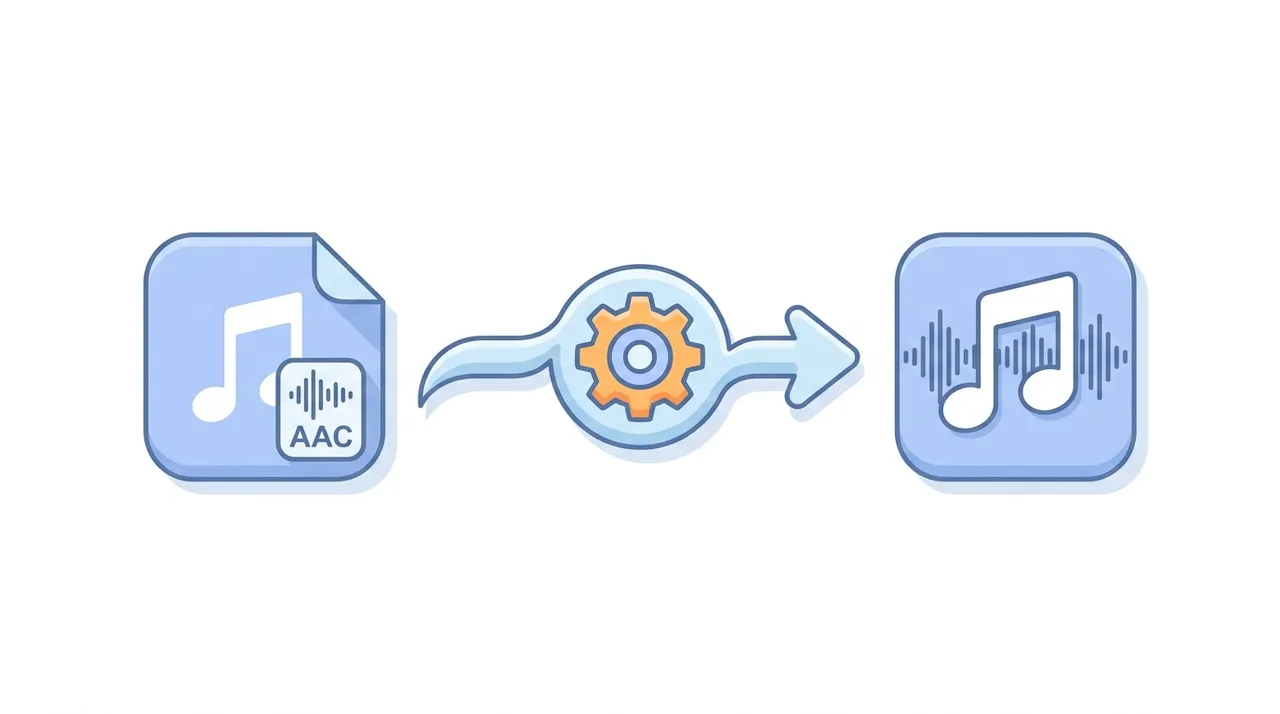
Converting M4A to MP3 means transcoding Apple's AAC-encoded audio into the universally supported MP3 format, so your files play on any device, car stereo, or media player. M4A delivers slightly better quality per kilobyte, but MP3 wins on raw compatibility. The fastest way is a browser-based converter: upload your M4A, pick a 256-320 kbps MP3 output, and download in seconds. Because both formats are lossy, choose a bitrate equal to or higher than the source to limit generation loss. This page explains exactly when the conversion is worth it, how the two formats differ, and the settings that preserve the most fidelity.
Try It Now — Free →This guide describes format capabilities and settings available in different programs. In WeLoveConvert you select the output format and, for supported images, quality. Codec, bitrate, lossless WebP mode and TIFF page selection are not available in the interface. Compare the result and keep your original.
summarizeKey Takeaways
- check_circleM4A (AAC) is more efficient than MP3, but MP3 plays everywhere, which is the main reason to convert.
- check_circleBoth formats are lossy, so transcoding adds generation loss; use 256-320 kbps MP3 to keep it inaudible.
- check_circleDRM-protected files (M4P, older iTunes purchases, Apple Music) cannot be converted directly.
- check_circleIf you still have the original WAV or FLAC, encode MP3 from that source instead of from M4A.
Advantages and Limitations of Converting M4A to MP3
check_circleAdvantages
- addPlays on virtually every device, player, and platform ever made
- addNo DRM in the MP3 output, so files move freely
- addUniversally accepted by uploaders, CMSs, and telephony systems
- addEasy to tag, edit, and trim with almost any audio tool
- addConversion is fast and works entirely in the browser
cancelLimitations
- removeLossy-to-lossy transcoding adds generation loss you cannot undo
- removeMP3 files are typically 20-30% larger than the equivalent M4A
- removeDRM-protected M4P and Apple Music files cannot be converted directly
Use the current WeLoveConvert workflow
- 1
Choose the output
Select your M4A file on the device, continue to configuration and confirm MP3 as the destination. Keep an unchanged original.
- 2
Convert locally
Keep the tab open while processing. The engine may download on first use. Large files and unsupported source codecs can fail because browser memory and decoder support vary.
- 3
Download and inspect
Download the completed MP3 file and open it in the application that will use it. Check the content, file size and, where relevant, duration, sound, dimensions and transparency. A format change does not guarantee a smaller file.
Controls available in this converter
Choose the destination format. Encoding settings are automatic: there are no bitrate, sample-rate, bit-depth, VBR, channel, trim or audio-track controls in this workflow. An audio result requires an audio stream in the source; converting a silent video cannot create sound. Lossy-to-lossless conversion cannot recover discarded detail. Listen to the downloaded beginning and ending before using it.
Common M4A to MP3 Conversion Issues
DRM-protected M4A file cannot be converted
Files purchased from iTunes before 2009 or Apple Music downloads may have FairPlay DRM. These cannot be directly converted. You need to use iTunes to burn to CD and re-rip, or use Apple Music to re-download DRM-free versions.
M4A file is not recognized
The file may actually be an M4P (protected) or M4B (audiobook) file. Check the file extension and ensure it is a standard M4A with AAC audio.
Quality sounds noticeably worse after conversion
The current workflow chooses its encoding profile automatically. You cannot select bitrate, CRF, sample rate, bit depth, channels, remux, subtitle handling or audio tracks here. Keep the original and check the saved output in the destination application; conversion is not guaranteed to be lossless.
Converted MP3 has different volume level
M4A files may include Sound Check or ReplayGain metadata that affects playback volume. The MP3 output may not carry this metadata, resulting in perceived volume differences.
When (and Why) to Convert M4A to MP3
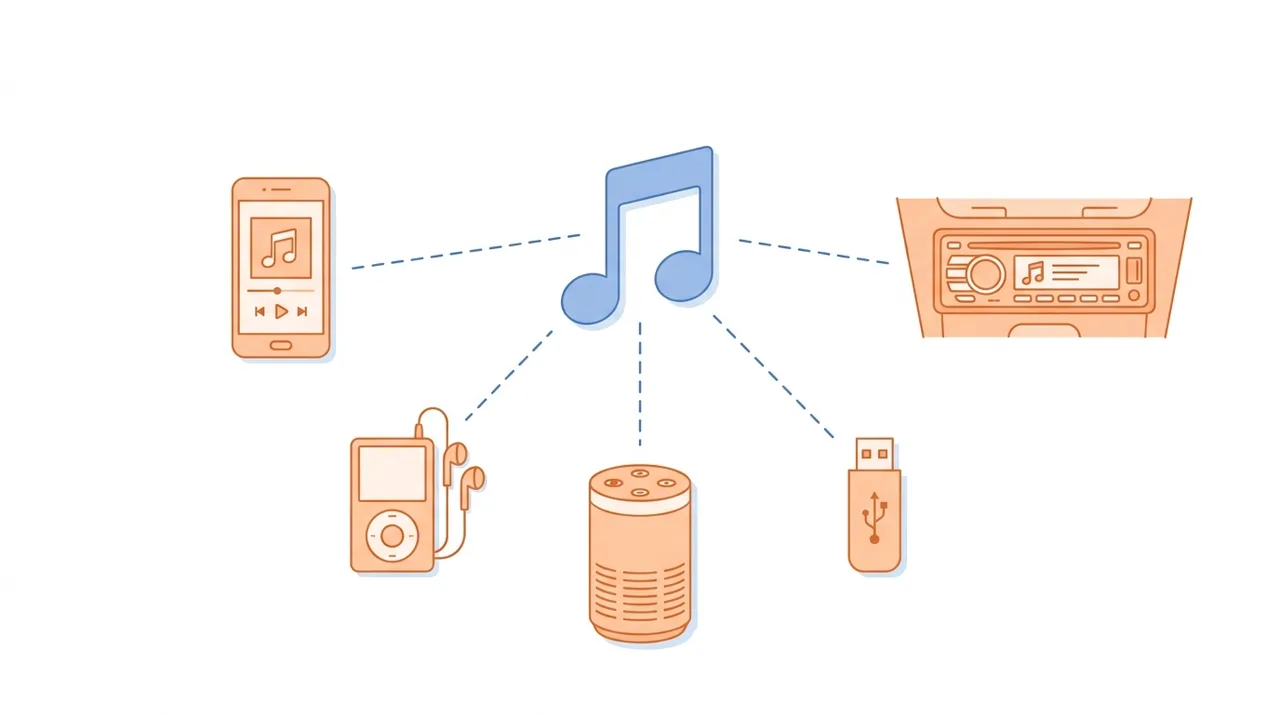
M4A is excellent inside the Apple ecosystem, but plenty of hardware and software never supported it. Convert to MP3 when guaranteed playback matters more than squeezing out the last few kilobytes.
- Your audio needs to play on older car stereos, MP3 players, or budget devices that reject AAC. Use our free converter to batch them quickly.
- You are uploading to a platform, CMS, or telephony system that only accepts MP3.
- You want one universal copy to share without worrying about the recipient's device.
- You are working with podcast or voiceover audio and need MP3 for wide distribution; see M4A to MP3.
- You are unsure whether MP3 is the right target; read what is MP3 before committing.
- Do NOT convert if you only use Apple devices and want maximum quality per megabyte; keep the M4A.
M4A vs MP3 vs WAV: Which Audio Format Wins
M4A and MP3 are both lossy, while WAV is uncompressed. Knowing where each fits helps you decide whether converting M4A to MP3 is the right move. For background, see what is MP3.
| Feature | M4A (AAC) | MP3 | WAV |
|---|---|---|---|
| Compression | Lossy (AAC) | Lossy (MPEG-1 L3) | Uncompressed |
| Typical file size (3-min song) | ~5 MB at 256 kbps | ~7 MB at 320 kbps | ~30 MB |
| Quality at same bitrate | Best | Slightly behind AAC | Lossless (no bitrate cap) |
| Device compatibility | Apple + modern players | Universal | Universal but heavy |
| DRM possible | Yes (FairPlay) | No | No |
| Best use | Apple ecosystem storage | Sharing and playback anywhere | Editing and archiving |
Understanding Lossy-to-Lossy Transcoding
Converting M4A to MP3 involves transcoding between two lossy formats. The M4A file has already discarded some audio data during AAC encoding. When this audio is re-encoded to MP3, additional data is discarded by the MP3 encoder. This is called generation loss and it means the resulting MP3 will always be slightly lower quality than the original M4A. To minimize this effect, always use the highest practical MP3 bitrate (320 kbps) and avoid re-encoding multiple times. If you have access to the original lossless source (WAV or FLAC), it is always better to encode MP3 directly from that rather than transcoding from M4A.
Frequently Asked Questions
Is M4A better quality than MP3?
The current workflow chooses its encoding profile automatically. You cannot select bitrate, CRF, sample rate, bit depth, channels, remux, subtitle handling or audio tracks here. Keep the original and check the saved output in the destination application; conversion is not guaranteed to be lossless.
Will I lose quality converting M4A to MP3?
Yes, some quality is lost because you are transcoding between two lossy formats. Using 320 kbps for the MP3 output minimizes this loss to a level that is usually imperceptible.
Can I convert Apple Music downloads to MP3?
Apple Music downloads are DRM-protected and cannot be directly converted. You would need to use iTunes or Apple Music to burn to CD and re-rip, or find DRM-free alternatives.
What bitrate should I use for the MP3?
Use 320 kbps for the best quality, especially if your M4A source is 256 kbps AAC (iTunes standard). For spoken content, 192 kbps is sufficient.
Why not just use M4A instead of converting?
M4A works well on Apple devices and most modern players, but some older devices, car stereos, and media players only support MP3. Converting ensures universal compatibility.
Does converting M4A to MP3 change file size much?
At equivalent quality levels, MP3 files are typically 20-30% larger than M4A files because AAC is a more efficient codec. A 5 MB M4A file becomes roughly 6-7 MB as a 320 kbps MP3.
Can I batch convert multiple M4A files to MP3?
Yes, most online converters and desktop tools support batch conversion. Upload all your M4A files at once and they will be processed with the same settings.
What is the difference between M4A and M4P?
M4A is unprotected AAC audio, while M4P is DRM-protected AAC audio (older iTunes purchases). Only M4A files can be freely converted to MP3.
Is converting M4A to MP3 free?
Yes. Browser-based converters like ours process the file locally or in the cloud at no cost, with no software install and no watermark on the audio.
How long does it take to convert M4A to MP3?
A typical 3-5 minute song converts in a few seconds. Batches of dozens of files usually finish in well under a minute, depending on your connection and total size.
Will converting M4A to MP3 keep my song titles and artwork?
Most converters carry over basic ID3 tags like title, artist, and album. Embedded cover art and Apple-specific metadata such as Sound Check may not transfer, so verify tags after converting.
Converting M4A to MP3 swaps a sliver of audio efficiency for the broadest compatibility in audio. Keep the bitrate at 256-320 kbps to make the quality loss inaudible, and reach for your original lossless file whenever you have one. Ready to go? Convert your files in seconds with our free M4A to MP3 converter.
Ready to convert your files? Try our free online converter.
Try It Now — Free →