
Cómo convertir MP4 a MP3: extraer audio y resolver errores
Para convertir MP4 a MP3 con WeLoveConvert, selecciona el vídeo, confirma MP3 como destino, inicia la conversión y descarga el resultado. El procesamiento se realiza en tu dispositivo. La herramienta actual utiliza la primera pista de audio y una calidad predefinida; no ofrece selector de bitrate, recorte ni menú de idiomas de audio. Esta guía explica qué revisar al convertir clases, entrevistas y otras grabaciones que tengas derecho a utilizar.
Pruébalo Gratis →Esta guía describe funciones de los formatos y ajustes disponibles en distintos programas. En WeLoveConvert eliges el formato de salida y, para imágenes compatibles, la calidad. La interfaz no ofrece selección de códec, tasa de bits, WebP sin pérdidas ni páginas TIFF. Compara el resultado y conserva el original.
boltQué obtienes
- check_circleUn nuevo archivo MP3 de solo audio. El MP4 original permanece intacto en tu dispositivo.
- check_circleLa primera pista de audio, que puede ser distinta del idioma que el reproductor elige por defecto.
- check_circleCodificación con pérdidas, sin una reducción de tamaño garantizada ni recuperación de detalles perdidos.
Convierte tu MP4 en cuatro pasos
- 1
Comprueba la grabación original
Reproduce el vídeo y confirma que contiene el sonido que necesitas. Una grabación de pantalla silenciosa puede no tener ninguna pista de audio. Empieza con un archivo pequeño si pruebas un navegador nuevo.
- 2
Selecciona el archivo y confirma MP3
Abre el convertidor de MP4 a MP3, selecciona el MP4 y comprueba el formato de destino. No hay controles de bitrate de audio ni recorte que ajustar.
- 3
Mantén la pestaña abierta
Pulsa Convertir y espera. El motor de procesamiento debe cargarse la primera vez. Las grabaciones grandes pueden superar la memoria disponible; quizá necesites otro dispositivo o un editor instalado.
- 4
Descarga y revisa el resultado
Usa el botón de descarga junto al archivo terminado. Abre el MP3 guardado en un reproductor y comprueba principio, final e idioma antes de compartirlo. Conserva el vídeo original para hacer correcciones.
Calidad: el MP3 no es una copia sin pérdidas
MP4 es un contenedor, no un códec de audio. Un MP4 compatible puede incluir AAC u otro formato de audio. La herramienta decodifica la primera pista y la vuelve a codificar como MP3. No separa la voz de la música de fondo, elimina ruido ni recupera sonido que nunca se grabó.
WeLoveConvert utiliza actualmente una calidad MP3 fija con bitrate variable. No exporta a 128, 192 o 320 kbps elegidos por el usuario. Un bitrate mayor no recupera detalles perdidos en el origen. Para seguir editando, considera MP4 a WAV: WAV evita otra etapa de codificación MP3, pero no mejora una grabación dañada o ya comprimida.
¿Cuánto disminuirá el archivo?
El tamaño depende de la duración, del vídeo original y del audio codificado. Un vídeo con muchas imágenes en movimiento puede reducirse considerablemente. Un MP4 con imagen fija y audio ya compacto puede no reducirse. No esperes un ahorro del 90% en todas las conversiones.
Como ejemplo de cálculo, 10 minutos con un bitrate medio de 128 kbps ocupan unos 9,6 MB: 128.000 × 600 ÷ 8 = 9.600.000 bytes, más pequeños datos de estructura. A 192 kbps serían unos 14,4 MB. Son cálculos, no opciones de la herramienta ni promesas de resultado. Con bitrate variable, comprueba el tamaño final.
Nuestra prueba pequeña del 5 de octubre de 2026
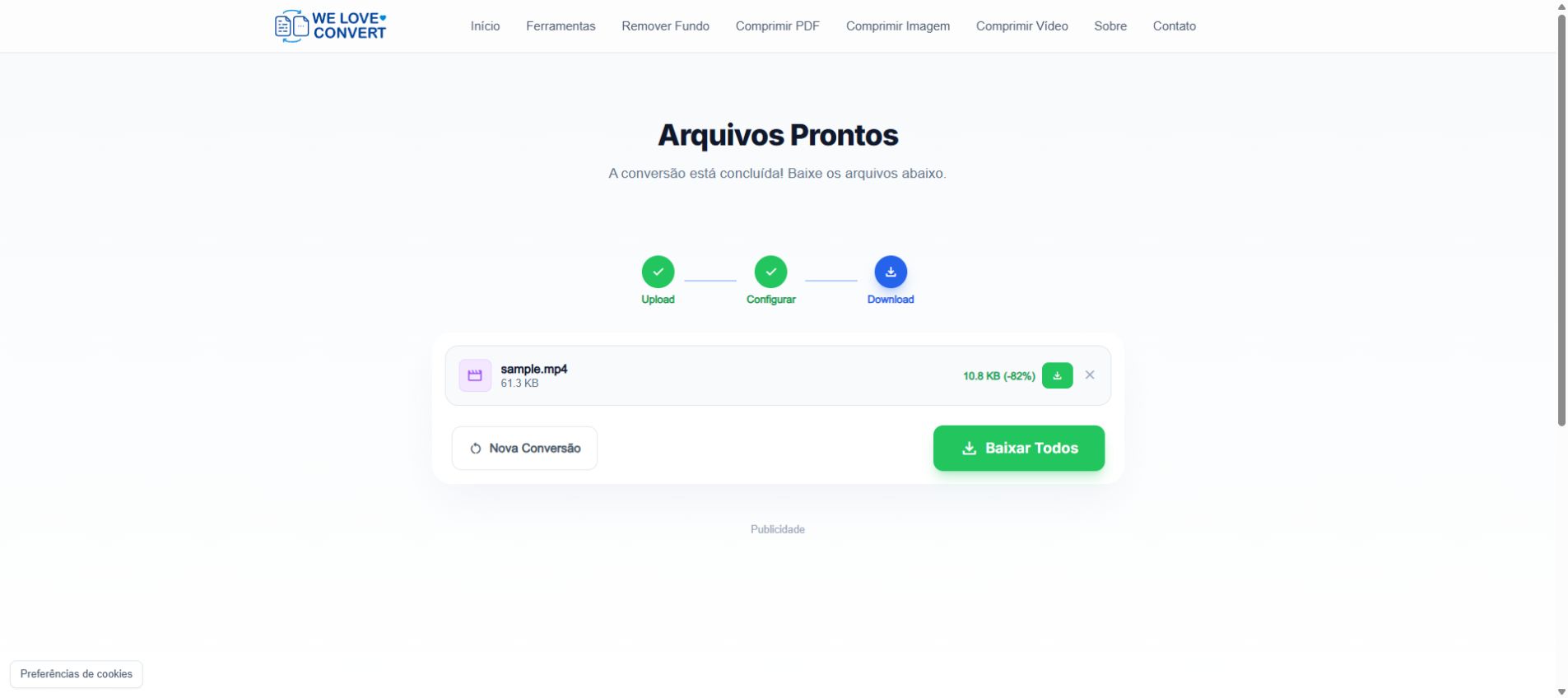
Probamos el convertidor público en Chrome para Windows con un MP4 de 2 segundos: vídeo H.264 de 320 × 240 y audio AAC mono a 44,1 kHz. El original tenía 62.821 bytes. La pantalla mostró 61,3 KB → 10,8 KB, una reducción del 82% y un enlace para descargar sample.mp3.
La prueba comprueba selección, configuración y generación del resultado para una muestra pequeña. No representa el rendimiento de grabaciones largas ni de otros dispositivos. La confirmación automatizada del archivo guardado no estaba disponible; no afirmamos haber comprobado la reproducción final ni la fidelidad del audio.
Cómo resolver problemas habituales
No hay audio o aparece un error
Comprueba que el original contiene una pista de audio. Cambiar la extensión a .mp4 no convierte el contenido. Si se reproduce bien, prueba una grabación corta que funcione para distinguir un problema del archivo de uno del navegador.
Se extrae otro idioma o los comentarios
El convertidor usa la primera pista, que puede no ser la predeterminada del reproductor. Usa un editor con selección de pistas para exportar primero el audio deseado. Esta herramienta no tiene selector de pista.
La pestaña deja de responder
Prueba un archivo más pequeño cada vez, cierra pestañas que consuman mucha memoria y mantén el dispositivo activo. El navegador tiene límites prácticos aunque el selector acepte el archivo.
No encuentro el MP3
Pulsa la descarga del archivo, comprueba el indicador de descargas del navegador y abre el archivo guardado. Un resultado listo no confirma que esté guardado. Evita recargar la página antes de descargarlo.
Referencias técnicas
- La documentación de selección de streams de FFmpeg explica la selección explícita de la pista de audio.
- La documentación del codificador MP3 de FFmpeg describe el control de calidad con bitrate variable. También contrastamos el proceso y sus límites con la implementación actual de WeLoveConvert.
Preguntas Frecuentes
¿Puedo recortar el audio o elegir 320 kbps aquí?
El flujo actual elige automáticamente el perfil de codificación. No permite seleccionar bitrate, CRF, frecuencia de muestreo, profundidad de bits, canales, remux, subtítulos ni pistas de audio. Conserva el original y comprueba la salida guardada en la aplicación de destino; no se garantiza una conversión sin pérdidas.
¿Basta cambiar .mp4 por .mp3?
No. Cambiar el nombre no altera el contenedor ni la codificación. Haz una conversión real y conserva el original.
¿Se suben mis vídeos a un servidor?
Los archivos seleccionados se procesan localmente en el navegador. El sitio sigue solicitando recursos de la aplicación y puede utilizar analítica y publicidad según el consentimiento. El procesamiento local no significa que todo el sitio funcione sin conexión o sin seguimiento.
¿Funciona en el móvil?
Puedes probar un navegador móvil compatible, empezando por un archivo pequeño. La memoria, los códecs y las restricciones de pestañas en segundo plano varían. No se garantiza que cualquier grabación funcione en cualquier teléfono.
Usa MP4 a MP3 para crear una copia de audio portátil y conserva la grabación original. Comprueba la pista, guarda el archivo y escúchalo antes de publicarlo. Consulta también el contenedor MP4 y el formato MP3.
¿Listo para convertir tus archivos? Prueba nuestro convertidor online gratuito.
Pruébalo Gratis →