How to convert MP3 to MP4: black video, audio and upload limits
An MP3 contains audio. An MP4 can contain audio and video. If a service requires a video file, changing the filename extension is not enough. Here is what WeLoveConvert actually creates, how to save it and when a video editor is a better fit.
Try It Now — Free →This guide describes format capabilities and settings available in different programs. In WeLoveConvert you select the output format and, for supported images, quality. Codec, bitrate, lossless WebP mode and TIFF page selection are not available in the interface. Compare the result and keep your original.
boltWhat you get
The MP3 to MP4 converter creates an MP4 with a black H.264 video track and AAC audio. The current preset uses 1280 × 720 pixels at 1 frame per second. It does not add an album cover or generate a slideshow.
Convert and check your file
- 1
Check the source
Play your original MP3 and keep a backup. Start with a short file when testing a browser or device for the first time.
- 2
Select the MP3
Open the converter, choose the file on your device and continue to configuration. Confirm MP4 as the output format.
- 3
Run the conversion
Keep the tab open until processing finishes. The engine may need to download on first use. This workflow has no cover-image, trimming or bitrate controls.
- 4
Download and verify
Use the download button when the result is ready. Open the saved MP4 in a player and check sound, duration and the ending before sharing it.
Why is the video black?
The black background is intentional: the converter creates a real video track to accompany the audio. Embedded MP3 cover art is not used as the picture. For a podcast cover, lyrics, captions or changing visuals, use a video editor. A black picture alone does not show that audio conversion failed.
Our small test on the live site
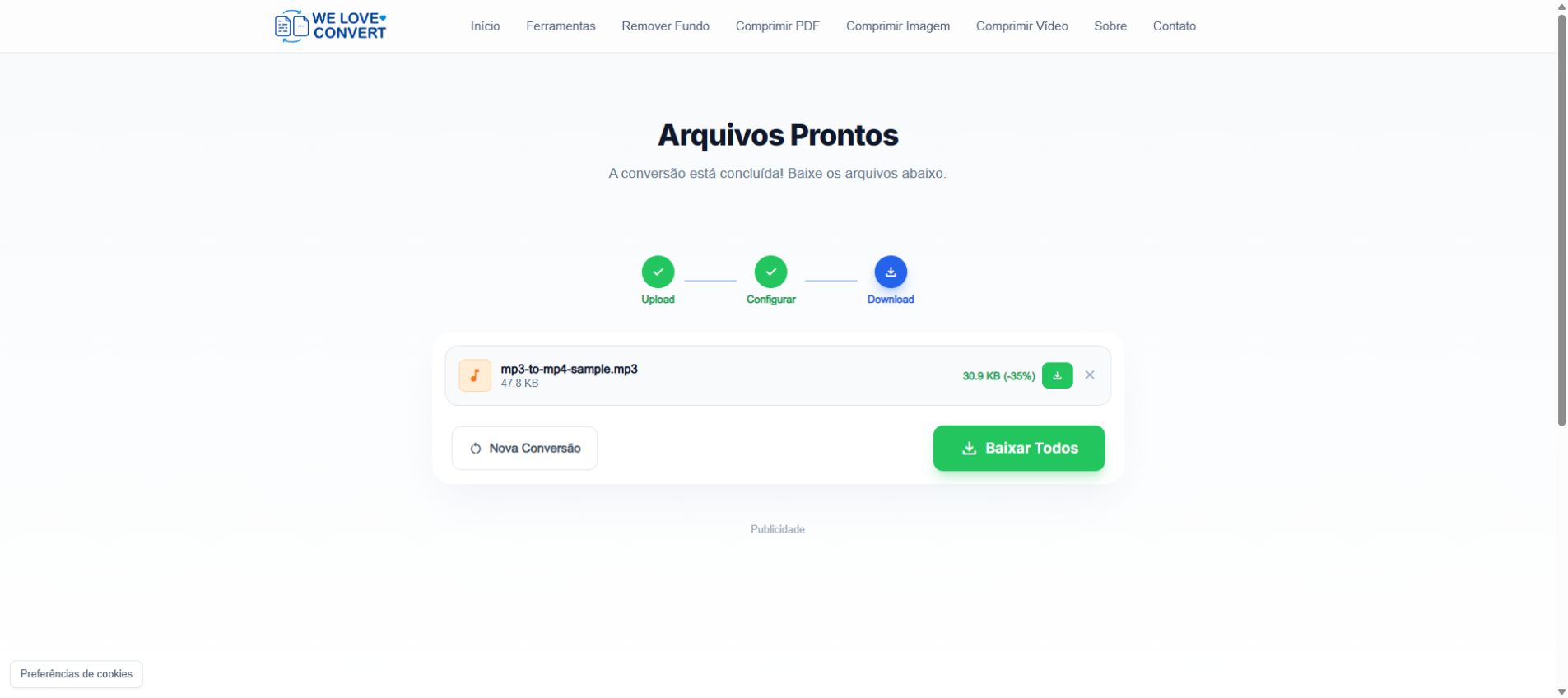
On 6 October 2026, we tested a synthetic 3-second, 440 Hz tone encoded as mono MP3 at 44.1 kHz and 128 kbps. The input contained 48,945 bytes. The interface reached the download screen and displayed 47.8 KB input and 30.9 KB output (−35%). This checks the interface workflow and its reported sizes; it is not a playback or audio-fidelity test of the saved output, nor a prediction for music or long recordings.
Quality, size and platform requirements
MP3 is decoded and re-encoded as AAC, so this is a lossy conversion. It cannot restore missing source detail. The output may grow or shrink depending on the recording and encoding. Keep MP3 if you only need audio. YouTube supports MP4 video but does not accept MP3 as a standalone video upload. That does not guarantee acceptance of every MP4: check the destination requirements, including frame rate, and try a short export first. This tool does not publish to YouTube.
Troubleshooting
Black picture with sound
This is expected. Use a video editor to add a visible cover or animation.
No sound or an incomplete file
Compare with the source, check player volume and try another player. Retry with a short known-good MP3. Keep the original if the result remains wrong.
Conversion stops or the tab closes
Close memory-heavy tabs and try a smaller file on a device with more available memory. Browser resources limit processing.
The destination rejects the MP4
Read its exact error and required export settings. This preset has no frame-rate or codec controls; use an editor with the required options.
Frequently Asked Questions
Can I just rename .mp3 to .mp4?
No. Renaming does not create a video track or change the encoded audio.
Are my files uploaded for conversion?
Conversion runs locally in your browser. Application assets still download, and the site uses analytics and advertising subject to consent.
Can I convert back to MP3?
Yes, see the MP4 to MP3 guide. Repeated lossy conversions can reduce quality, so keep the original MP3.
Use MP3 to MP4 for a simple video with a black background. For a designed podcast video or platform-specific export, use a video editor. Always check the saved file before deleting the original or sharing the result.
Ready to convert your files? Try our free online converter.
Try It Now — Free →