
What Is BMP? Complete Guide to the Bitmap Image Format
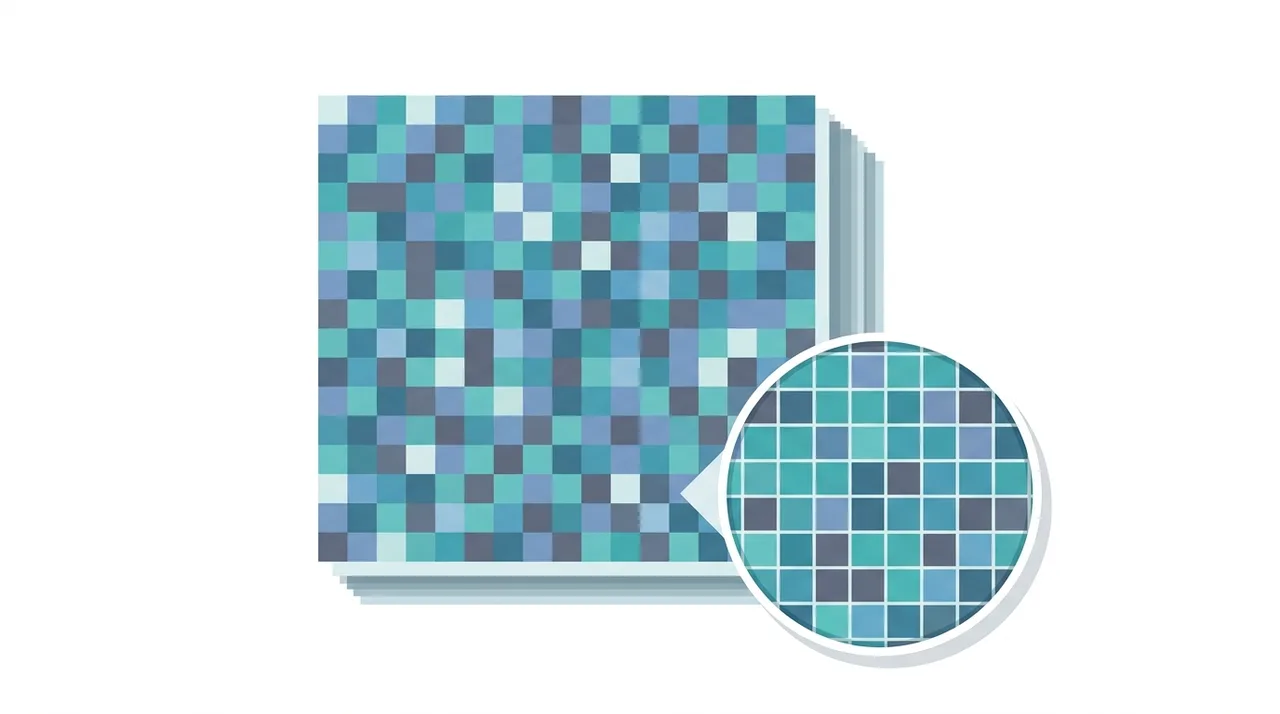
BMP (Bitmap Image File) is Microsoft's native raster image format that stores a picture as a direct grid of pixels, almost always without compression. Because every pixel's color value is written to disk verbatim, BMP guarantees flawless, lossless quality but produces very large files-a single 1080p photo can exceed 6 MB. The format dates to Windows 2.0 (1988) and remains universally readable, yet it lacks web support, animation, and meaningful metadata. Today BMP survives mainly in legacy Windows tools, embedded devices, and image-processing pipelines, where its raw simplicity matters more than file size. For everyday use, PNG or JPG are better choices.
This guide describes format capabilities and settings available in different programs. In WeLoveConvert you select the output format and, for supported images, quality. Codec, bitrate, lossless WebP mode and TIFF page selection are not available in the interface. Compare the result and keep your original.
summarizeKey Takeaways
- check_circleBMP stores raw, uncompressed pixel data, so quality is perfect but files are 10-50x larger than equivalent JPGs.
- check_circleIt is a Windows-native format readable almost everywhere, but unsupported on the web and incapable of animation.
- check_circlePixels are stored in BGR order, bottom-up, with each row padded to a 4-byte boundary-quirks that trip up naive parsers.
- check_circleFor storage or sharing, convert BMP to PNG (lossless) or JPG (lossy) to cut file size by 80-95% with no visible loss.
Key Features and Characteristics of BMP
BMP is defined by its simplicity and raw approach to image storage.
- Stores pixel data in an uncompressed or minimally compressed raster format
- Supports color depths from 1-bit (monochrome) to 32-bit (true color with alpha)
- Native to Windows and supported by virtually all image software on every platform
- Files contain a header with image dimensions, color depth, and palette information followed by raw pixel data
- Optional RLE (Run-Length Encoding) compression available for 4-bit and 8-bit images
- Bottom-up storage by default: pixel rows are stored starting from the bottom-left corner
- Supports color palettes for indexed color modes (1, 4, and 8-bit) and direct color for 16, 24, and 32-bit modes
Technical Overview of the BMP Format
The BMP file format consists of a file header (14 bytes identifying the file as BMP and specifying its size), an information header (DIB header, typically 40 bytes in the common BITMAPINFOHEADER variant, containing dimensions, color depth, and compression method), an optional color table (for indexed color modes), and the pixel data itself. In the most common 24-bit BMP, each pixel is stored as three bytes representing blue, green, and red values (note the BGR order, not RGB). Each row of pixels is padded to a multiple of 4 bytes. A 1920x1080 pixel image at 24-bit color produces a BMP file of approximately 5.9 MB, compared to roughly 300-500 KB as JPG or 1-3 MB as PNG. The BMP format has evolved through several DIB header versions: BITMAPCOREHEADER (OS/2, 12 bytes), BITMAPINFOHEADER (Windows 3.x, 40 bytes), BITMAPV4HEADER (Windows 95, 108 bytes adding color space information), and BITMAPV5HEADER (Windows 98, 124 bytes adding ICC color profiles). The optional RLE compression for 4-bit and 8-bit BMPs provides modest size reduction for images with large areas of uniform color, but is rarely used in practice.
Advantages and Limitations of BMP
check_circleAdvantages
- addPerfect lossless quality with zero compression artifacts
- addDead-simple structure that any software can read and write instantly
- addNo CPU cost to decode, ideal for low-power embedded hardware
- addUniversally supported across Windows and most desktop image tools
- addPredictable, fixed file size that is easy to calculate from dimensions
cancelLimitations
- removeHuge file sizes make storage, email, and web delivery impractical
- removeNo support in web browsers as a page image format
- removeLacks EXIF metadata, animation, and reliable cross-app transparency
- removeLargely obsolete-PNG and JPG outperform it for nearly every task
When to Use BMP (and When Not To)
BMP earns its place only in narrow scenarios where raw, decode-free pixel access outweighs its enormous footprint. In almost every other case, a compressed format is the right answer.
- Use BMP when a legacy Windows application, scanner driver, or embedded display explicitly requires it and cannot decode PNG or JPG.
- Use it as a lossless intermediate in an image-processing pipeline, then export the final result via the WeLoveConvert converter.
- Avoid BMP on the web entirely-serve PNG for graphics or JPG for photos instead.
- For archiving photographs at full quality with smaller files, convert BMP to PNG rather than keeping the raw bitmap.
- For sharing photos by email or messaging, convert BMP to JPG to shrink a 6 MB file to roughly 300 KB.
- Choose TIFF over BMP for professional print or archival workflows that need layers, multi-page support, or CMYK.
BMP vs JPG vs TIFF: How the Uncompressed Format Stacks Up
BMP's closest relatives are JPG (the lossy web standard) and TIFF (the professional uncompressed alternative). Comparing all three clarifies why BMP rarely wins. See our guides on JPG and TIFF for deeper detail.
| Feature | BMP | JPG | TIFF |
|---|---|---|---|
| Compression | None (or rare RLE) | Lossy DCT | None or lossless (LZW/ZIP) |
| File size (1080p photo) | ~5.9 MB | ~300-500 KB | ~3-6 MB |
| Quality | Lossless | Lossy | Lossless option |
| Web browser support | No | Universal | No |
| Metadata / color profiles | Minimal (V4/V5 only) | EXIF + ICC | Extensive EXIF + ICC |
| Multi-page / layers | No | No | Yes |
| Typical use | Legacy Windows, embedded | Web & photo sharing | Print, scanning, archival |
How to Convert BMP to JPG or PNG
- 1
Identify why you need to convert
Most users convert BMP to reduce file size. Choose JPG for photographs (smaller but lossy) or PNG for graphics and screenshots (lossless but slightly larger than JPG).
- 2
Upload your BMP file
Use WeLoveConvert to upload BMP files directly in your browser. The tool handles all BMP variants including different color depths and header versions.
- 3
Select your target format
Choose JPG with quality 80-90 for photographs, or PNG for images requiring perfect quality or transparency. The conversion preserves all visual information from the original BMP.
- 4
Download the smaller file
The converted file will be a fraction of the original BMP size. A 6 MB BMP photograph converts to roughly 300 KB as JPG or 2 MB as PNG, with no visible quality difference.
History of BMP and Its Role in Computing
The BMP format was introduced by Microsoft alongside Windows 2.0 in 1988, providing a standard image format for the Windows graphical environment. Its simplicity was intentional: in an era of limited processing power, the uncompressed format meant images could be displayed instantly without decompression overhead. BMP became the native image format for Windows Paint (originally Paintbrush) and was the default clipboard image format in Windows, roles it maintained for decades. The Device Independent Bitmap (DIB) structure at BMP's core was designed to display images consistently across different output devices, a critical requirement as Windows supported increasingly diverse display hardware. Over the years, BMP evolved through several header versions to support higher color depths, color management, and alpha transparency, but its fundamental uncompressed nature remained unchanged. As the internet grew in the mid-1990s and bandwidth became precious, BMP's enormous file sizes made it unsuitable for web use. JPG and GIF dominated the web, while PNG eventually replaced BMP for lossless local image storage. Today, BMP is encountered primarily in legacy Windows applications, embedded systems with limited processing capabilities, and as an intermediate format in image processing pipelines where avoiding compression artifacts during processing is important.
Frequently Asked Questions
What does BMP stand for?
BMP stands for Bitmap. The name refers to the way the format stores images as a map of bits (pixels), with each pixel's color value stored directly in the file. The term "bitmap" predates the BMP file format and refers to any image represented as a grid of pixels.
Why are BMP files so large?
BMP files are large because they store each pixel's color value without compression. A 24-bit BMP uses 3 bytes per pixel, so a 1920x1080 image requires about 5.9 MB just for pixel data, plus header overhead. The same image compressed as JPG might be 300 KB, representing a 20:1 size reduction.
Is BMP lossless?
Yes, BMP is inherently lossless because it stores raw pixel data without any lossy compression. When you save an image as BMP, every pixel is preserved exactly. However, this perfect quality comes at the cost of very large file sizes. PNG provides the same lossless quality with much better compression.
Can I use BMP images on a website?
While technically possible, BMP should never be used for web images. Most browsers have limited BMP support, file sizes are impractically large for web delivery, and the format lacks features expected on the web. Convert BMP files to JPG, PNG, or WebP before using them online.
Does BMP support transparency?
BMP supports transparency only in 32-bit mode, where the fourth byte per pixel serves as an alpha channel. However, support for BMP alpha transparency is inconsistent across applications. For reliable transparency, PNG or WebP are far better choices.
Should I ever use BMP format?
In modern practice, BMP is rarely the best choice. Use PNG for lossless images, JPG for photographs, or WebP for web-optimized images. BMP may still be appropriate for legacy systems that require it, embedded systems with no decompression capability, or intermediate steps in image processing where you need raw uncompressed data.
What is the difference between BMP and RAW?
BMP stores processed pixel data in a standardized format with a header. RAW camera files contain unprocessed sensor data directly from the camera, requiring specialized software to open and process. RAW files preserve much more information (12-14 bits per channel, full sensor data) and are specific to camera manufacturers, while BMP is a universal display format.
Can BMP files contain metadata like EXIF?
Standard BMP files do not support EXIF metadata, ICC color profiles (except in V4/V5 header versions), or other embedded information common in JPG and PNG files. This is another reason BMP has been superseded by modern formats that support rich metadata.
What is the difference between BMP and JPG?
BMP stores every pixel uncompressed and lossless, producing large files (about 5.9 MB for a 1080p image), while JPG uses lossy DCT compression to shrink the same image to roughly 300-500 KB. JPG is the universal web standard for photos; BMP is a legacy desktop format unsuitable for the web. Convert BMP to JPG when you need small, shareable files and can accept minor, usually invisible, compression.
How do I open a BMP file?
BMP files open natively on Windows in Photos, Paint, and almost every image editor, and on macOS in Preview. Web browsers can display most BMPs if opened directly, but will not show them embedded in web pages. If a program cannot read a specific BMP variant, convert it to PNG or JPG first using an online converter.
Is BMP still used today?
BMP is rarely used for new projects. It survives in legacy Windows software, the Windows clipboard, some scanner and fax drivers, embedded systems with no decompression capability, and as a temporary lossless format inside image-processing pipelines. For storage, sharing, or the web, PNG and JPG have replaced it almost everywhere.
BMP is a foundational image format that prioritizes simplicity and perfect quality above all else. While its uncompressed nature results in impractically large files for modern use, BMP played a critical role in the history of computer graphics as the native Windows image format. Today, PNG offers identical lossless quality with dramatically smaller files, making BMP conversion a common need for anyone working with legacy files. Tools like WeLoveConvert make it easy to convert BMP to JPG or PNG, preserving image quality while reducing file sizes by 80-95%.