
Cómo Convertir PNG a JPG Online Gratis
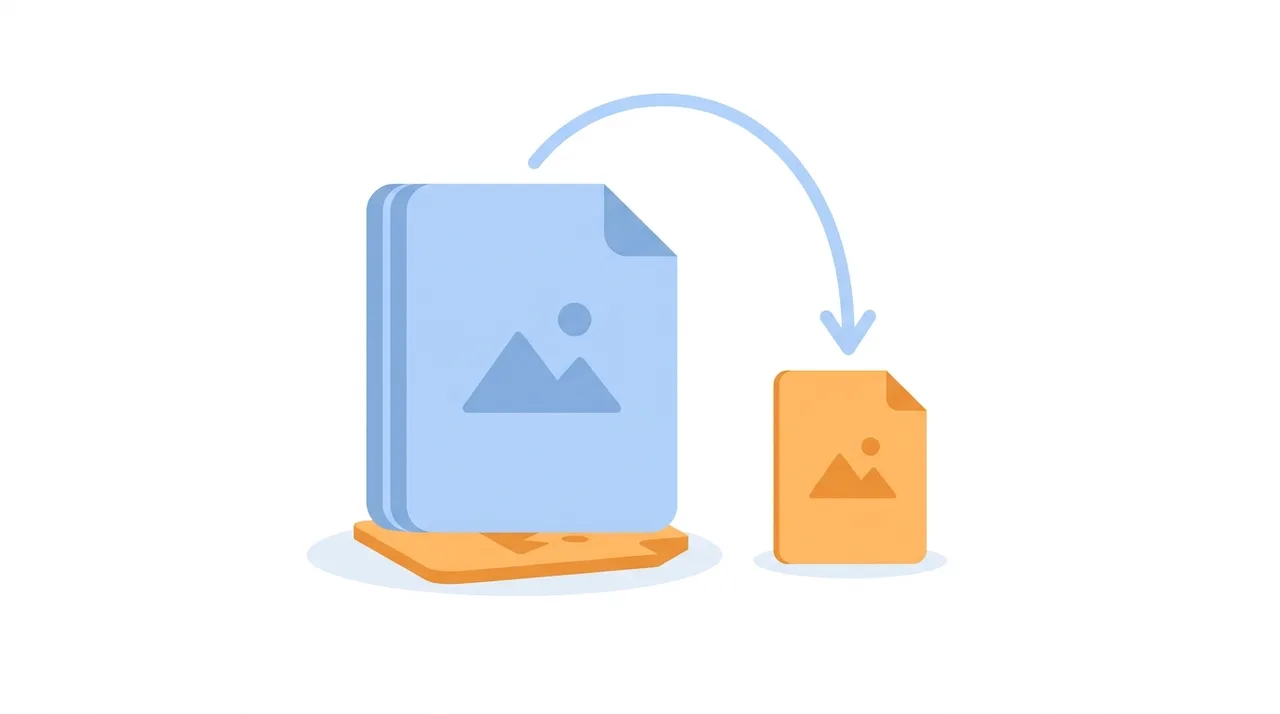
Convierte PNG a JPG cuando necesites un archivo mucho más pequeño para fotos, páginas web o correo y no requieras transparencia. El PNG conserva cada píxel con compresión sin pérdidas, lo que hace enormes los archivos fotográficos, mientras que el JPG usa compresión con pérdidas para reducir la misma imagen un 80-90% sin diferencia visible en calidad 85-90. La conversión aplana cualquier fondo transparente a un color sólido (normalmente blanco) y descarta el canal alfa. Para fotos, paisajes e imágenes de producto, el JPG carga más rápido y ocupa menos espacio. Para logotipos, iconos y texto nítido, conserva el PNG o considera WebP.
Pruébalo Gratis →Esta guía describe funciones de los formatos y ajustes disponibles en distintos programas. En WeLoveConvert eliges el formato de salida y, para imágenes compatibles, la calidad. La interfaz no ofrece selección de códec, tasa de bits, WebP sin pérdidas ni páginas TIFF. Compara el resultado y conserva el original.
summarizePuntos Clave
- check_circleConvierte PNG a JPG para reducir el tamaño de las fotos un 80-90% sin pérdida visible en calidad 85-90, ideal para la velocidad web y los límites de correo.
- check_circleEl JPG no almacena transparencia, así que cualquier área transparente del PNG se aplana a un color de fondo sólido (blanco por defecto) durante la conversión.
- check_circleUsa JPG para fotos e imágenes con muchos colores; conserva PNG para logotipos, iconos, capturas con texto o cualquier cosa que necesite fondo transparente.
- check_circleLa conversión es unidireccional y con pérdidas: guarda el PNG original por si necesitas reeditar, ya que volver a guardar JPG repetidamente acumula artefactos de compresión.
Usa el flujo actual de WeLoveConvert
- 1
Elige la salida
Selecciona el archivo PNG en el dispositivo, continúa a la configuración y confirma JPG como destino. Conserva el original sin cambios.
- 2
Convierte localmente
Mantén la pestaña abierta durante el proceso. El motor puede descargarse en el primer uso. Los archivos grandes y los códecs incompatibles pueden fallar por límites de memoria y decodificación del navegador.
- 3
Descarga y comprueba
Descarga el JPG terminado y ábrelo en la aplicación de destino. Comprueba contenido, tamaño y, cuando corresponda, duración, sonido, dimensiones y transparencia. Cambiar el formato no garantiza un archivo más pequeño.
Ventajas y Limitaciones de Convertir PNG a JPG
check_circleVentajas
- addReducción drástica del tamaño del archivo, normalmente un 80-90% menor para contenido fotográfico.
- addCarga de página más rápida y mejor rendimiento de SEO para imágenes web.
- addCompatibilidad universal en todos los navegadores, dispositivos, apps y editores.
- addAdjuntos más pequeños que caben en los límites de tamaño de correo y mensajería.
- addMenor coste de almacenamiento y ancho de banda para grandes colecciones de fotos.
cancelLimitaciones
- removeLa compresión con pérdidas descarta datos de forma permanente; la calidad del PNG original no se puede recuperar.
- removeSe pierde la transparencia, aplanando las áreas transparentes a un color de fondo sólido.
- removeAparecen artefactos visibles alrededor de texto nítido, logotipos y bordes de alto contraste.
- removeVolver a guardar repetidamente como JPG acumula pérdida de calidad en cada generación.
Cuándo (y Por Qué) Convertir PNG a JPG
Convertir tiene sentido cuando la precisión sin pérdidas del PNG se desperdicia en contenido que el JPG maneja igual de bien a la vista, pero a una fracción del tamaño. Estos son los escenarios donde más compensa el cambio.
- Acelerar un sitio web o blog: las fotos PNG grandes ralentizan la carga, así que cámbialas a JPG con nuestro conversor de PNG a JPG para mejorar los Core Web Vitals.
- Enviar fotos por correo o apps de mensajería que limitan el tamaño del adjunto, donde un PNG de 8 MB se convierte en un JPG de 1 MB que se envía al instante.
- Subir a redes sociales que recomprimen las imágenes de todos modos, así que empezar con un JPG ligero evita la doble degradación.
- Archivar grandes bibliotecas de fotos donde el coste de almacenamiento y copia de seguridad importa más que la fidelidad píxel a píxel.
- Cuando NO necesitas transparencia ni nitidez de texto, en cuyo caso el PNG no ofrece ventaja real frente al JPG para ese tipo de imagen.
- Como alternativa rápida, compara el JPG con formatos modernos usando nuestro conversor de archivos gratuito para ver la salida JPG y WebP una al lado de la otra.
PNG vs JPG vs WebP: Qué Formato de Destino Elegir
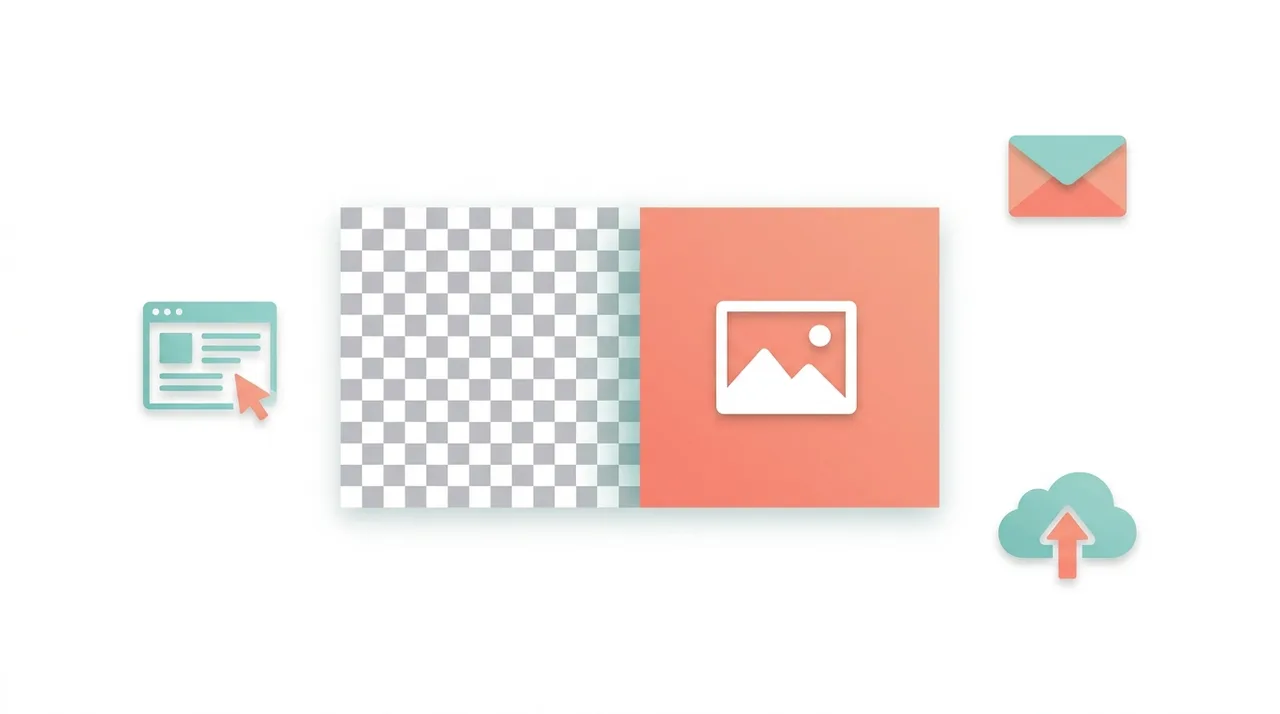
Al convertir desde PNG, el JPG es el estándar universal, pero el WebP a menudo lo supera en tamaño. Esto compara el formato de origen con ambos destinos para que elijas con criterio.
| Feature | PNG (origen) | JPG (destino) | WebP (alternativa) |
|---|---|---|---|
| Foto de 12 MP | ~10-25 MB | ~1,5-4 MB en calidad 85 | ~1-3 MB, ~25% menor que JPG |
| Compresión | Sin pérdidas | Con pérdidas | Con y sin pérdidas |
| Transparencia | Sí (alfa) | No | Sí (alfa) |
| Mejor para | Logos, texto, gráficos | Fotos, imágenes web | Web moderna, fotos + transparencia |
| Soporte de navegador | Universal | Universal | Todos los modernos |
| Calidad al reguardar | Nunca se degrada | Se degrada en cada guardado | Se degrada en cada guardado con pérdidas |
Controles disponibles en este conversor
El control de calidad de imagen está disponible para salidas JPG, JPEG y WebP. Empieza con un valor prudente y compara el archivo guardado; no existe una reducción garantizada ni una calidad ideal universal. No hay selección de WebP sin pérdidas, retención de metadatos, perfil de color, redimensionamiento, submuestreo de croma o codificación progresiva. JPEG rellena las zonas transparentes con blanco.
Problemas Comunes en la Conversión PNG a JPG
Las áreas transparentes aparecen como bloques negros o de color
JPG no admite transparencia. Asegúrate de que tu convertidor reemplace los píxeles transparentes con el color de fondo deseado (normalmente blanco) antes de codificar a JPG. La mayoría de los convertidores manejan esto automáticamente.
El texto y las líneas nítidas se ven borrosos en el JPG convertido
La compresión JPG crea artefactos visibles alrededor de bordes de alto contraste, como el texto. Aumenta la configuración de calidad a 95 o más para imágenes con texto. Alternativamente, considera mantener estas imágenes como PNG, ya que comprimen mejor en ese formato.
Los colores se ven ligeramente diferentes después de la conversión
Esto puede ocurrir por diferencias en el perfil de color. Asegúrate de que tu convertidor preserve el perfil de color ICC durante la conversión. Algunos visores también muestran los colores de forma diferente según el manejo del perfil incrustado.
El tamaño del archivo sigue siendo muy grande después de la conversión
Reduce la configuración de calidad a 75-80 para una mayor reducción de tamaño. Verifica también si la resolución de la imagen es más grande de lo necesario y considera reducirla. Una foto de 4000x3000 para visualización web raramente necesita ser tan grande.
Entendiendo la Calidad JPG y los Compromisos de Tamaño
La calidad JPG se mide en una escala de 0 a 100, donde 100 produce el archivo más grande con menos artefactos de compresión. Sin embargo, la relación no es lineal. Pasar de calidad 80 a 90 duplica aproximadamente el tamaño del archivo produciendo solo mejoras visuales sutiles. Pasar de 90 a 100 puede triplicar el tamaño del archivo para ganancias casi imperceptibles. Para la mayoría de los propósitos, la calidad 85-90 representa el punto óptimo donde los artefactos de compresión son invisibles al ojo humano en condiciones normales de visualización. Solo los flujos de trabajo de archivado o impresión profesional justifican configuraciones de calidad superiores a 95.
Preguntas Frecuentes
¿Convertir PNG a JPG reduce la calidad?
Sí, JPG usa compresión con pérdidas, así que algo de calidad se pierde técnicamente. Sin embargo, en configuraciones de calidad de 85 o superior, la diferencia es imperceptible para fotografías. La drástica reducción en el tamaño de archivo (a menudo 80-90%) hace que este compromiso valga la pena para la mayoría de los casos.
¿Qué pasa con el fondo transparente al convertir PNG a JPG?
Como JPG no admite transparencia, cualquier área transparente en tu PNG se rellenará con un color de fondo sólido. La mayoría de los convertidores usan blanco por defecto, pero algunos permiten elegir un color diferente.
¿Cuál es la mejor configuración de calidad para la conversión PNG a JPG?
Para fotografías, la calidad 85-90 ofrece el mejor equilibrio entre calidad visual y tamaño de archivo. Para imágenes con texto o gráficos nítidos, usa 92-95 para minimizar artefactos alrededor de los bordes. Una calidad por debajo de 75 produce resultados visiblemente degradados.
¿Puedo convertir PNG a JPG sin perder calidad?
No completamente, ya que JPG es inherentemente un formato con pérdidas. Sin embargo, en configuraciones de calidad alta (90+), la diferencia visual es prácticamente indetectable. Para compresión verdaderamente sin pérdidas con archivos más pequeños, considera el formato WebP.
¿Por qué querría convertir PNG a JPG?
La razón principal es la reducción del tamaño de archivo. Una fotografía PNG de 10 MB puede convertirse en un JPG de 1,5 MB con calidad 85 sin diferencia visible de calidad. Esto importa para la velocidad de carga de sitios web, los límites de archivos adjuntos, el espacio de almacenamiento y el uso de ancho de banda.
¿Puedo convertir varios archivos PNG a JPG a la vez?
Sí. Nuestro convertidor admite la conversión por lotes. Sube todos tus archivos PNG a la vez y se convertirán a JPG simultáneamente. Esto es mucho más rápido que convertir un archivo a la vez.
¿Convertir PNG a JPG hará que mi foto se vea borrosa?
No con ajustes de calidad sensatos. En calidad 85-90 una foto convertida se ve idéntica al PNG en visualización normal. El desenfoque aparece sobre todo alrededor de texto nítido o líneas finas, o cuando bajas la calidad por debajo de 75, así que conserva las imágenes con mucho texto como PNG.
¿Cuánto más pequeño será mi archivo tras convertir PNG a JPG?
Para una foto típica de 12 megapíxeles, espera una caída de unos 10-25 MB en PNG a aproximadamente 1,5-4 MB en JPG con calidad 85, una reducción del 80-90%. Los gráficos planos con pocos colores se reducen menos porque el PNG ya los comprime de forma eficiente.
¿Es seguro convertir PNG a JPG online?
Con nuestro convertidor lo es, porque la conversión se ejecuta por completo en tu navegador y no se sube ningún archivo a un servidor. Tus imágenes nunca salen de tu dispositivo, lo que mantiene seguras las fotos y documentos privados.
Convertir PNG a JPG es la forma más sencilla de hacer las fotos mucho más pequeñas sin caída visible de calidad, siempre que no necesites transparencia ni texto muy nítido. Usa calidad 85-90 para el mejor equilibrio, guarda el PNG original por si vas a reeditar y recurre a WebP cuando quieras archivos aún más pequeños en sitios modernos. Cuando estés listo, nuestro conversor gratuito de PNG a JPG procesa archivos individuales o por lotes al instante y con privacidad, directamente en tu navegador.
¿Listo para convertir tus archivos? Prueba nuestro convertidor online gratuito.
Pruébalo Gratis →