
Cómo Convertir JPG a PNG Online Gratis
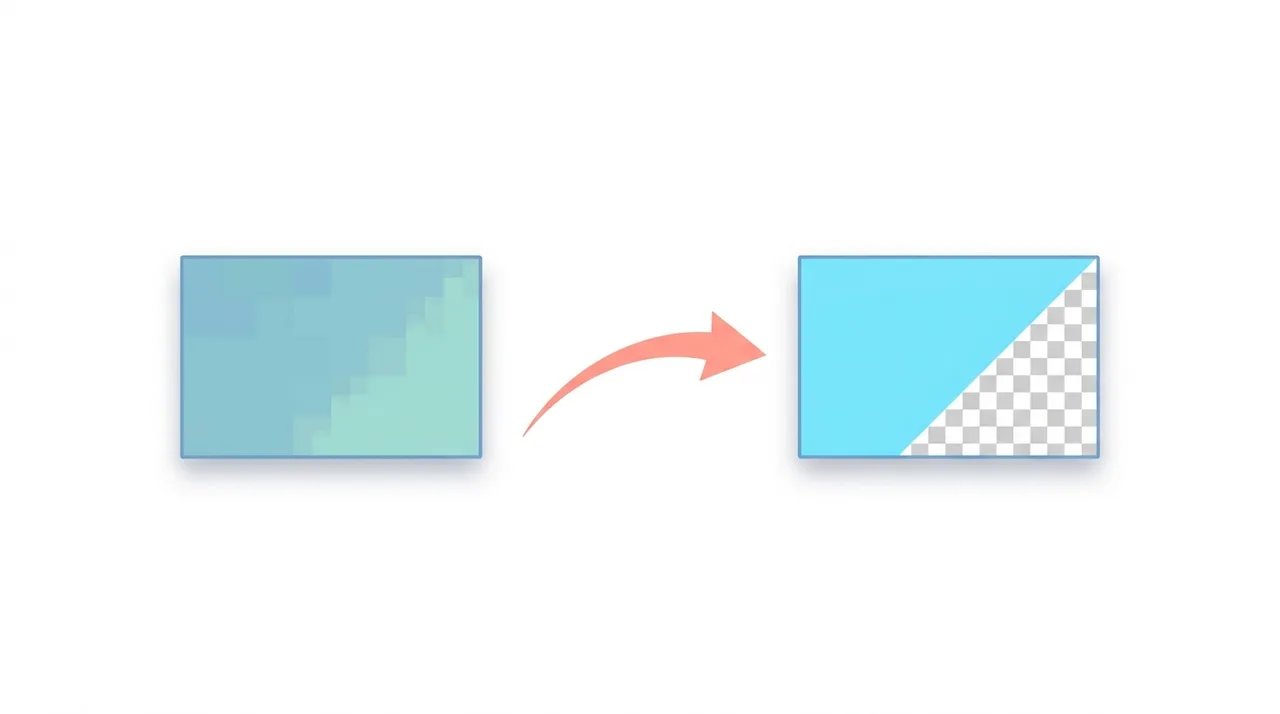
Para convertir JPG a PNG, sube tu archivo JPG a un convertidor, elige PNG como formato de salida y descarga el resultado. PNG es el destino correcto cuando necesitas calidad sin pérdidas o soporte de transparencia que el JPG no ofrece. Lo clave es entender que la conversión congela la calidad actual del JPG y detiene más daños por ediciones repetidas, pero no deshace los artefactos ya presentes. Las herramientas en el navegador convierten en segundos sin subir tu archivo a ningún sitio. A continuación cubrimos cuándo vale la pena esta conversión, cómo se compara PNG con las alternativas y los compromisos prácticos que debes esperar.
Pruébalo Gratis →Esta guía describe funciones de los formatos y ajustes disponibles en distintos programas. En WeLoveConvert eliges el formato de salida y, para imágenes compatibles, la calidad. La interfaz no ofrece selección de códec, tasa de bits, WebP sin pérdidas ni páginas TIFF. Compara el resultado y conserva el original.
summarizePuntos Clave
- check_circleConvertir JPG a PNG congela la calidad actual y evita pérdidas futuras por generación, pero no recupera detalle ya perdido en la compresión JPG.
- check_circlePNG es la elección correcta cuando necesitas un canal alfa real o bordes pixel-perfect; la conversión por sí sola no crea transparencia.
- check_circleEspera que el PNG sea de 3 a 5 veces más grande que el JPG de origen en contenido fotográfico, porque la compresión PNG es sin pérdidas.
- check_circlePara la web, WebP suele ganar como destino, ofreciendo calidad sin pérdidas en tamaños menores que PNG.
Ventajas y Limitaciones de Convertir a PNG
check_circleVentajas
- addSin pérdidas a partir de aquí - sin degradación adicional en ediciones y guardados
- addLa transparencia alfa real se vuelve posible (tras enmascarar la imagen)
- addBordes extremadamente nítidos en texto, capturas y arte lineal, sin halos de compresión
- addSe abre idéntico en todo editor, navegador y sistema, sin sorpresas de códec
- addFormato master ideal para recursos que vas a reutilizar o editar muchas veces
cancelLimitaciones
- removeLos archivos suelen ser de 3 a 5 veces más grandes que el JPG de origen en fotos
- removeNo recupera detalle ni elimina artefactos ya perdidos en la compresión JPG
- removeLa conversión sola no hace transparente el fondo
- removeLos archivos más grandes pueden ralentizar las páginas si se usan sin optimizar en la web
Cuándo (y Por Qué) Convertir JPG a PNG
La conversión vale la pena en escenarios concretos donde la compresión con pérdidas del JPG o la falta de transparencia se vuelve una limitación real. Usa estas señales para decidir.
- Vas a editar y volver a guardar la imagen repetidamente y quieres detener la pérdida acumulada de calidad del JPG antes de que empeore - mira el detalle técnico en qué es PNG.
- Necesitas un canal alfa para luego enmascarar o superponer la imagen sobre fondos variados, algo que el JPG no almacena.
- El archivo contiene texto nítido, arte lineal, capturas de pantalla o mockups de interfaz, donde los bordes sin pérdidas importan más que el tamaño.
- Estás preparando un logotipo o icono para un sistema de diseño y quieres un formato que todo editor abre sin recompresión.
- Vas a enviar la imagen a una herramienta que rechaza JPG pero acepta PNG - solo conviértela aquí en segundos.
- Si el destino es la web y el ancho de banda importa más que el soporte universal, considera convertir a WebP.
PNG vs JPG vs WebP como Destino de Conversión
Al decidir en qué convertir tu JPG, la elección se reduce a PNG para transparencia sin pérdidas, mantener el JPG para fotos pequeñas, o WebP para el mejor equilibrio en la web.
| Feature | PNG (destino) | JPG (origen) | WebP (alternativa) |
|---|---|---|---|
| Compresión | Sin pérdidas | Con pérdidas | Con o sin pérdidas |
| Transparencia | Alfa completo de 8 bits | Ninguna | Alfa completo de 8 bits |
| Tamaño típico (foto 1920x1080) | ~2,5-4 MB | ~400-700 KB | ~250-500 KB |
| Mejor contenido | Logotipos, texto, capturas | Fotografías | Fotos y gráficos web |
| Soporte de navegador | Universal | Universal | Universal (modernos) |
| Pérdida al volver a guardar | Ninguna | Se acumula | Ninguna (modo sin pérdidas) |
Usa el flujo actual de WeLoveConvert
- 1
Elige la salida
Selecciona el archivo JPG en el dispositivo, continúa a la configuración y confirma PNG como destino. Conserva el original sin cambios.
- 2
Convierte localmente
Mantén la pestaña abierta durante el proceso. El motor puede descargarse en el primer uso. Los archivos grandes y los códecs incompatibles pueden fallar por límites de memoria y decodificación del navegador.
- 3
Descarga y comprueba
Descarga el PNG terminado y ábrelo en la aplicación de destino. Comprueba contenido, tamaño y, cuando corresponda, duración, sonido, dimensiones y transparencia. Cambiar el formato no garantiza un archivo más pequeño.
Controles disponibles en este conversor
Selecciona PNG como salida. Esta conversión no ofrece nivel de compresión PNG, profundidad de bits, perfil de color ni controles del canal alfa. No recupera detalles perdidos ni garantiza conservar metadatos. Un GIF produce una imagen estática, sin selección de fotograma ni controles de animación. Comprueba píxeles, dimensiones y bordes transparentes en la descarga, además de la vista previa.
Problemas Comunes al Convertir JPG a PNG
El archivo PNG convertido es mucho más grande que el JPG original
Este es el comportamiento esperado. PNG usa compresión sin pérdidas, que produce archivos más grandes que la compresión con pérdidas de JPG, especialmente para fotografías. Considera si realmente necesitas PNG, o si la calidad de JPG es aceptable para tu caso de uso.
La imagen se ve idéntica después de la conversión
La apariencia visual debería ser idéntica, ya que PNG preserva todos los datos de píxel del JPG. El beneficio es que las ediciones y guardados futuros no degradarán la calidad. Ten en cuenta que convertir a PNG no puede recuperar la calidad ya perdida durante la compresión JPG.
El fondo es blanco en lugar de transparente
Convertir JPG a PNG no hace los fondos transparentes automáticamente. Los archivos JPG no tienen datos de transparencia. Después de la conversión, necesitas usar un editor de imágenes para eliminar el fondo y crear transparencia.
El archivo es demasiado grande para mi sitio web
Usa herramientas de optimización de compresión PNG para reducir el tamaño del archivo sin pérdida de calidad. Alternativamente, considera el formato WebP, que ofrece tanto calidad sin pérdidas como tamaños de archivo más pequeños que PNG.
Cuándo Deberías Convertir JPG a PNG
No todo archivo JPG necesita convertirse a PNG. Aquí están los escenarios donde la conversión proporciona beneficios reales.
- Necesitas agregar un fondo transparente a la imagen para uso en diseños o presentaciones
- La imagen contiene texto, arte lineal o bordes definidos que se benefician de la compresión sin pérdidas
- Planeas hacer múltiples rondas de ediciones y quieres evitar la pérdida acumulativa de calidad
- Estás creando capturas de pantalla o mockups de interfaz donde la precisión pixel-perfect importa
- La imagen se usará como logotipo o superposición de icono sobre diferentes fondos
- Necesitas preservar detalles finos en diagramas técnicos o gráficos
Preguntas Frecuentes
¿Convertir JPG a PNG mejora la calidad de la imagen?
No. Convertir JPG a PNG preserva la calidad actual, pero no puede recuperar datos perdidos durante la compresión JPG original. El beneficio es que las ediciones y guardados futuros no causarán degradación adicional de calidad.
¿Por qué mi archivo PNG es mucho más grande que el JPG?
PNG usa compresión sin pérdidas, que mantiene cada píxel intacto. JPG logra tamaños menores descartando datos visuales. Una fotografía típica puede ser de 3 a 5 veces más grande como PNG en comparación con un JPG de calidad 80.
¿Puedo hacer el fondo transparente después de convertir a PNG?
Sí, pero la conversión en sí no crea transparencia. Después de convertir a PNG, usa una herramienta de edición de imágenes o un removedor de fondo para hacer transparentes áreas específicas. El formato PNG admite transparencia alfa completa.
¿JPG o PNG es mejor para redes sociales?
La mayoría de las plataformas de redes sociales aceptan ambos formatos, pero recomprimirán tu imagen de todos modos. Para fotografías, JPG suele ser suficiente. Para imágenes con texto superpuesto, logotipos o gráficos, PNG preserva bordes más nítidos antes de que la plataforma recomprima.
¿Convertir JPG a PNG elimina los artefactos de compresión?
No. Los artefactos de compresión como las bandas, el ruido mosquito y los bloques están incorporados en los datos de píxel. Convertir a PNG preserva estos artefactos perfectamente en lugar de empeorarlos, pero no puede eliminarlos.
¿Puedo convertir JPG a PNG en mi teléfono?
Sí. Nuestro convertidor online funciona en cualquier navegador móvil moderno. Simplemente abre la página del convertidor, sube tu archivo JPG desde tu biblioteca de fotos y descarga el archivo PNG convertido directamente a tu dispositivo.
¿Debo convertir JPG a PNG o a WebP para mi sitio web?
Para la web, WebP suele ser el mejor destino: soporta la misma transparencia que PNG pero genera archivos 25-35% más pequeños. Elige PNG solo cuando necesites soporte garantizado en herramientas antiguas o un master sin compresión.
¿Convertir JPG a PNG hace el archivo sin pérdidas de ahora en adelante?
Sí. Una vez en PNG, cada guardado es sin pérdidas, así que editar y reexportar ya no añade daño de compresión. Sin embargo, cualquier artefacto ya presente del JPG original se conserva exactamente igual.
¿Es seguro convertir JPG a PNG en el navegador?
Sí. Los convertidores en el navegador procesan el archivo localmente en tu dispositivo, así que la imagen nunca se sube a un servidor. Esto mantiene las fotos y documentos privados completamente en tu equipo.
Convierte JPG a PNG siempre que necesites edición sin pérdidas, gráficos nítidos o un formato listo para transparencia - y omite la conversión cuando el tamaño pequeño de foto sea la prioridad. Recuerda que PNG congela la calidad en lugar de mejorarla, y espera archivos más grandes a cambio. Cuando el destino sea la web, evalúa convertir a WebP para tamaños menores. ¿Listo para cambiar de formato ahora? Usa nuestro convertidor online gratuito para transformar tu JPG en PNG en segundos, totalmente en tu navegador.
¿Listo para convertir tus archivos? Prueba nuestro convertidor online gratuito.
Pruébalo Gratis →