
How to Convert HEIC to JPG Online Free
This browser conversion does not offer metadata retention. EXIF dates, GPS coordinates, camera settings and color profiles are not guaranteed to survive. Keep the original for archiving and check orientation in the saved image.
Try It Now — Free →This guide describes format capabilities and settings available in different programs. In WeLoveConvert you select the output format and, for supported images, quality. Codec, bitrate, lossless WebP mode and TIFF page selection are not available in the interface. Compare the result and keep your original.
summarizeKey Takeaways
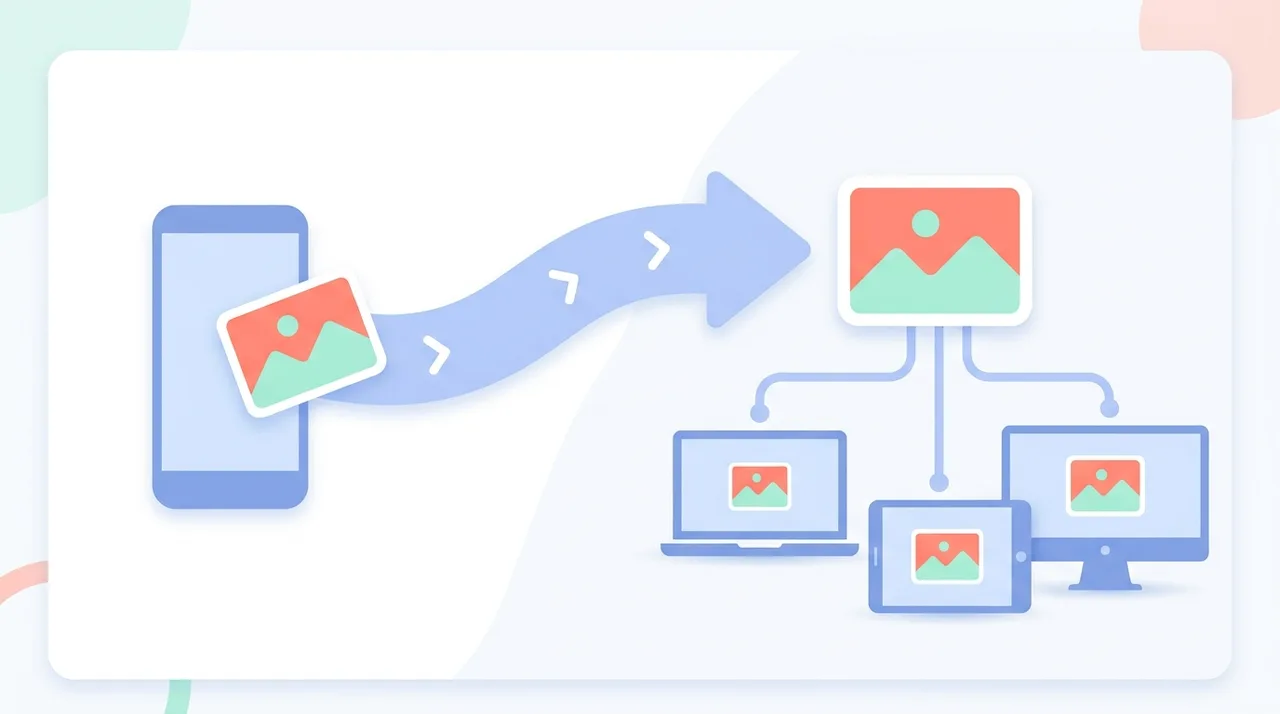
- check_circleConvert HEIC to JPG whenever a website, app, or non-Apple device refuses to open your iPhone photo — JPG is supported virtually everywhere.
- check_circleExpect a larger file: a 12MP photo grows from roughly 1.5–2.5 MB (HEIC) to about 3–5 MB (JPG at quality 85).
- check_circleQuality loss is negligible at JPG quality 90+, the only real changes are 16-bit→ 8-bit color depth and Display P3→ sRGB color space.
- check_circleThis browser conversion does not offer metadata retention. EXIF dates, GPS coordinates, camera settings and color profiles are not guaranteed to survive. Keep the original for archiving and check orientation in the saved image.
What Is HEIC and Why Does Apple Use It?
HEIC stands for High Efficiency Image Container and is based on the HEIF (High Efficiency Image Format) standard. Apple adopted HEIC as the default camera format starting with iOS 11 in 2017 because it offers superior compression compared to JPG. A typical 12-megapixel iPhone photo saved as HEIC is about 1.5-2.5 MB, while the same photo as JPG would be 3-5 MB. HEIC also supports advanced features like 16-bit color depth, image sequences for Live Photos, and depth maps from Portrait mode. Despite these technical advantages, HEIC adoption outside Apple remains limited, making JPG conversion necessary for cross-platform compatibility.
Advantages and Limitations of Converting to JPG
check_circleAdvantages
- addOpens on every device, browser, app, and website without plugins
- addAccepted by virtually all upload forms, print labs, and email clients
- addThis browser conversion does not offer metadata retention. EXIF dates, GPS coordinates, camera settings and color profiles are not guaranteed to survive. Keep the original for archiving and check orientation in the saved image.
- addSmall enough for fast sharing while keeping good visual quality
- addNo software install needed with a browser-based converter
cancelLimitations
- removeRoughly doubles file size compared to the HEIC original
- removeDrops 16-bit color to 8-bit and remaps Display P3 to sRGB
- removeLoses Live Photo motion and Portrait-mode depth layers
- removeRe-encoding adds a small, usually invisible, generation of lossy compression
Use the current WeLoveConvert workflow
- 1
Choose the output
Select your HEIC file on the device, continue to configuration and confirm JPG as the destination. Keep an unchanged original.
- 2
Convert locally
Keep the tab open while processing. The engine may download on first use. Large files and unsupported source codecs can fail because browser memory and decoder support vary.
- 3
Download and inspect
Download the completed JPG file and open it in the application that will use it. Check the content, file size and, where relevant, duration, sound, dimensions and transparency. A format change does not guarantee a smaller file.
When (and Why) to Convert HEIC to JPG
You do not need to convert every HEIC file — keep the originals when storage and Apple-only viewing are your priority. Convert to JPG specifically when compatibility, sharing, or uploading is the goal.
- A website upload form, job portal, or social platform rejects your photo because it is not a recognized image — a quick HEIC to JPG conversion fixes it instantly.
- You are sending photos to Windows, Android, or older-device users who see a blank or broken file when opening HEIC.
- You need the image in graphic design, presentation, or document software that has no HEIC decoder — our free converter handles it in the browser.
- You want a print-ready file, since most photo labs require JPG or PNG uploads rather than HEIC.
- You are unsure whether JPG or a lossless option fits better — compare with our HEIC to PNG route before deciding.
- You want to understand the source format first by reading what HEIC is and how its compression differs from JPG.
HEIC vs JPG vs PNG: Which Target Format Fits?
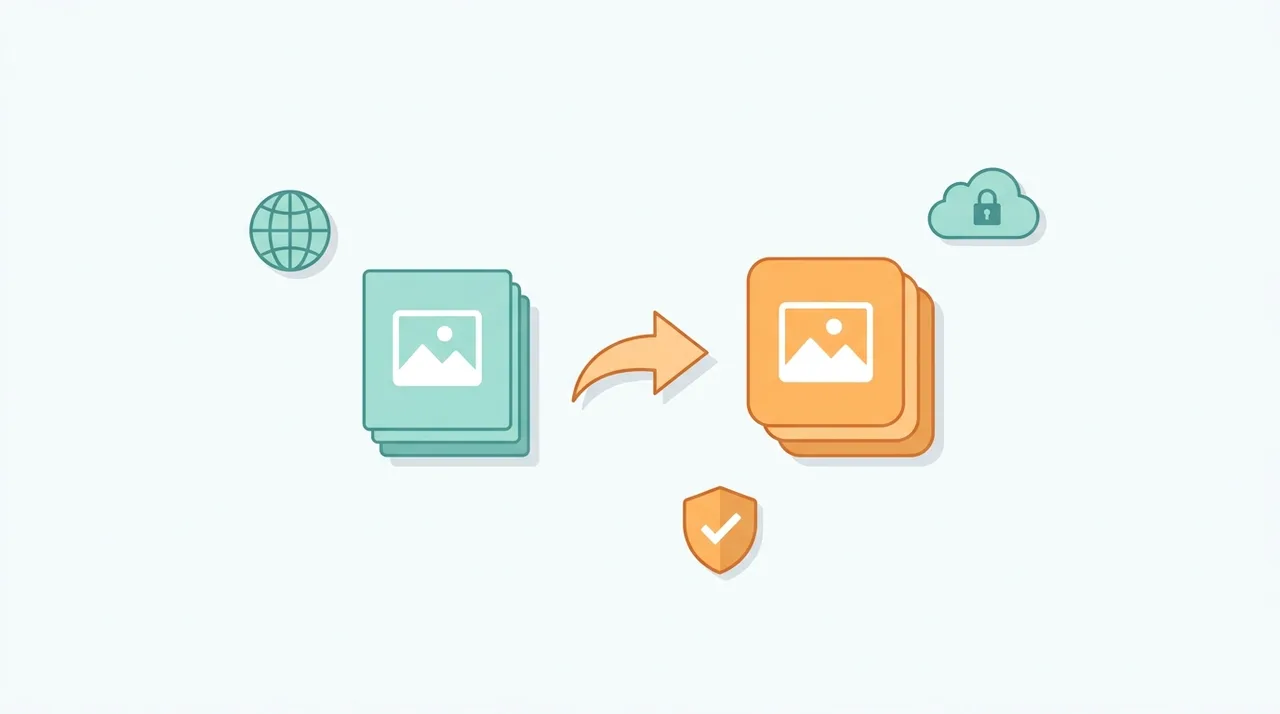
JPG is the default choice for HEIC conversion, but PNG is worth considering for screenshots or graphics. Learn more about JPG and PNG before choosing.
| Feature | HEIC (source) | JPG (target) | PNG (alternative) |
|---|---|---|---|
| 12MP photo size | 1.5–2.5 MB | 3–5 MB | 8–20 MB |
| Compression | Lossy, highly efficient (HEVC) | Lossy, universal baseline | Lossless |
| Color depth | Up to 16-bit | 8-bit (24-bit RGB) | 8 or 16-bit + alpha |
| Universal compatibility | Apple + newer software only | Yes — everywhere | Yes — everywhere |
| Transparency | Yes | No | Yes |
| Best for | Storage on Apple devices | Photos, sharing, uploads | Screenshots, logos, graphics |
Common HEIC to JPG Conversion Issues
HEIC file cannot be opened or recognized
Make sure the file extension is .heic or .heif. Some file managers may display these as unknown files. If the file came from iCloud, ensure it has finished downloading completely before attempting conversion.
Converted JPG has different colors than the original
HEIC supports a wider color gamut (Display P3) than standard JPG (sRGB). During conversion, colors outside the sRGB range are mapped to the closest sRGB equivalent, which can cause subtle shifts in vivid reds, greens, and blues.
EXIF data or photo orientation is wrong after conversion
This browser conversion does not offer metadata retention. EXIF dates, GPS coordinates, camera settings and color profiles are not guaranteed to survive. Keep the original for archiving and check orientation in the saved image.
Live Photo or Portrait mode depth data is lost
JPG format cannot store the additional data layers used by Live Photos (video component) or Portrait mode (depth map). Only the primary still image is preserved in the JPG conversion. This is a format limitation, not a converter issue.
Batch conversion of many HEIC files is slow
HEIC decoding is computationally intensive. For large batches, process 10-20 files at a time rather than hundreds. Performance depends on your device processor speed since conversion runs locally in your browser.
When to Convert HEIC to JPG
You do not always need to convert HEIC files. Here are the specific situations where conversion is necessary or beneficial.
- Uploading photos to websites or platforms that do not accept HEIC format
- Sharing photos with people using Windows, Android, or older devices without HEIC support
- Using photos in graphic design software, presentation tools, or document editors that lack HEIC compatibility
- Printing photos through services that require JPG or PNG format uploads
- Archiving photos in a universally accessible format for long-term storage
- Embedding images in emails where HEIC attachments may not render for all recipients
Frequently Asked Questions
What is a HEIC file?
HEIC is Apple high-efficiency photo format used by iPhones and iPads since iOS 11. It stores photos at roughly half the file size of JPG while maintaining equivalent or better quality. The format is based on the HEVC video codec.
Why can I not open HEIC files on my Windows PC?
Windows does not natively support HEIC without installing the HEIF Image Extensions from the Microsoft Store. Converting to JPG eliminates this compatibility issue entirely, making your photos viewable in any application.
Does converting HEIC to JPG lose quality?
There is minimal quality loss when using a high JPG quality setting (90 or above). The main differences are the loss of 16-bit color depth (reduced to 8-bit) and the conversion from P3 to sRGB color space. For normal viewing purposes, these changes are not noticeable.
Can I stop my iPhone from taking HEIC photos?
Yes. Go to Settings, then Camera, then Formats, and select Most Compatible. This switches your camera to capture JPG photos directly. Note that JPG files will use roughly twice the storage space compared to HEIC.
Are HEIC files the same as HEIF files?
HEIC is a specific container format within the broader HEIF standard. HEIC files typically contain images compressed with the HEVC codec. In practice, .heic and .heif files are handled identically by most software, and our converter supports both extensions.
Will converting HEIC to JPG preserve my photo metadata?
This browser conversion does not offer metadata retention. EXIF dates, GPS coordinates, camera settings and color profiles are not guaranteed to survive. Keep the original for archiving and check orientation in the saved image.
How do I convert multiple HEIC files at once?
Upload all your HEIC files to the converter simultaneously using drag and drop or file selection. The converter processes them in parallel and provides individual download links for each converted JPG file.
Does HEIC to JPG conversion reduce image quality?
At JPG quality 90 or higher the difference is visually imperceptible for everyday photos. The technical changes are a reduction from 16-bit to 8-bit color depth and a conversion from the Display P3 color space to sRGB, which can slightly mute very vivid reds and greens. Detail and sharpness are otherwise retained.
Why is my JPG bigger than the original HEIC?
HEIC uses the modern HEVC codec, which is roughly twice as efficient as JPG's older compression. The same 12-megapixel photo that is 2 MB in HEIC typically becomes 3–5 MB as JPG. The larger size is the cost of JPG's universal compatibility.
Is it safe to convert iPhone photos online?
It is when the converter processes files locally in your browser instead of uploading them to a server. Our browser-based tool decodes HEIC on your own device, so your personal photos never leave your phone or computer during conversion.
This browser conversion does not offer metadata retention. EXIF dates, GPS coordinates, camera settings and color profiles are not guaranteed to survive. Keep the original for archiving and check orientation in the saved image.
Ready to convert your files? Try our free online converter.
Try It Now — Free →