
What Is MKV? The Flexible Matroska Video Container
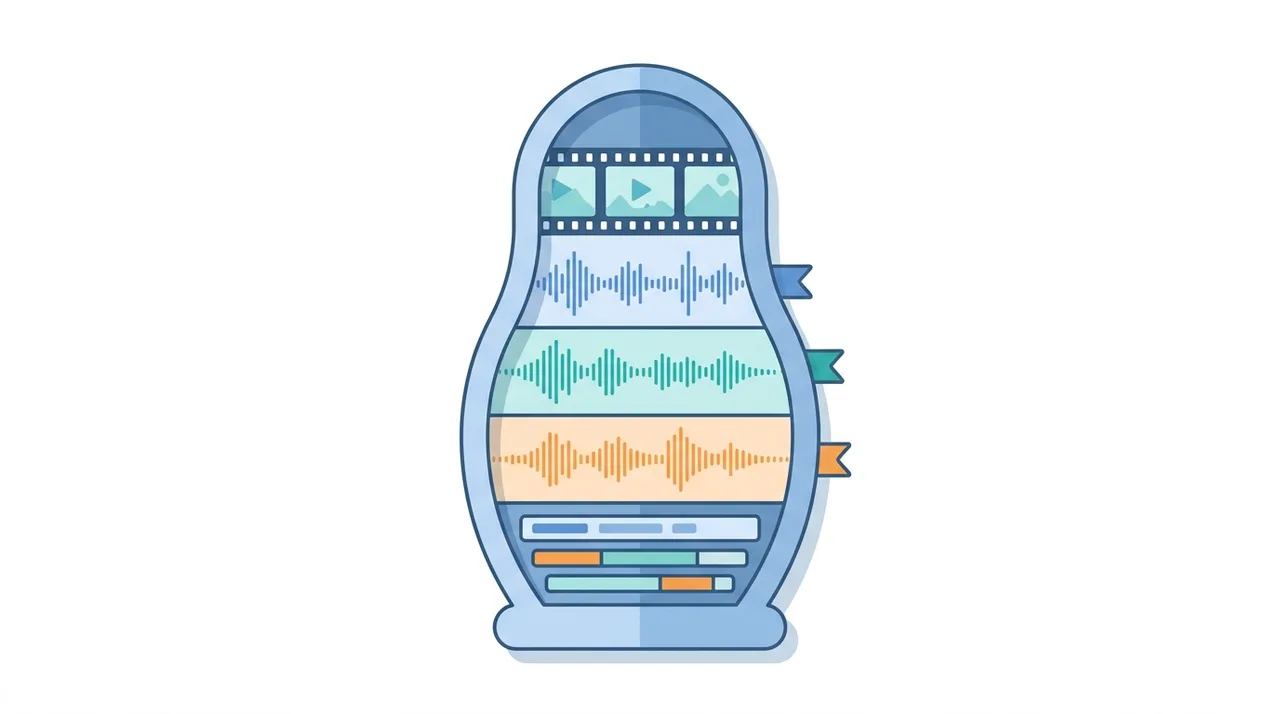
MKV (Matroska Video) is a free, open-standard multimedia container that can hold an unlimited number of video, audio, subtitle, and metadata tracks inside one file. Because it is codec-agnostic, an MKV file can wrap virtually any modern codec, from H.264 and H.265 to AV1, alongside lossless audio and richly styled subtitles. That flexibility makes it the default choice for Blu-ray rips, multi-language movie collections, anime, and home media servers like Plex and Jellyfin. The trade-off is compatibility: MKV is not built for web streaming and not every device plays it natively without a software player.
This guide describes format capabilities and settings available in different programs. In WeLoveConvert you select the output format and, for supported images, quality. Codec, bitrate, lossless WebP mode and TIFF page selection are not available in the interface. Compare the result and keep your original.
summarizeKey Takeaways
- check_circleMKV is an open-source container, not a codec, so it can hold almost any video or audio format inside it.
- check_circleIt supports unlimited audio tracks, every major subtitle format, chapters, and embedded fonts in a single file.
- check_circleMKV excels at archival, multi-language, and high-quality video; MP4 wins for web streaming and universal device playback.
- check_circleConverting MKV to MP4 with the same H.264/AAC codecs is a fast, lossless remux that takes seconds.
The Matroska Architecture: EBML and Beyond
MKV is built on EBML (Extensible Binary Meta Language), a binary derivative of XML that provides a flexible, extensible foundation. Unlike rigid container formats, EBML allows MKV to evolve over time by adding new element types without breaking backward compatibility. Every piece of data in an MKV file is stored as an EBML element with an ID, size, and payload.
The Matroska specification defines three main file extensions: .mkv for video with audio, .mka for audio-only files, and .mk3d for stereoscopic 3D video. The container itself is codec-agnostic, meaning it can wrap virtually any video codec (H.264, H.265, VP9, AV1, MPEG-4), audio codec (AAC, FLAC, DTS, AC3, Opus, Vorbis), and subtitle format (SRT, ASS/SSA, PGS, VobSub) ever created.
One of MKV's most distinctive features is its chapter system, which supports nested chapters with names in multiple languages. This makes it particularly suited for episodic content, concert recordings, and educational material where precise navigation is valuable.
Why MKV Is the Power User's Choice
MKV offers capabilities that no other container can match, making it the format of choice for demanding use cases.
- Stores unlimited audio tracks in different languages and codecs within a single file
- Supports every major subtitle format including SRT, ASS/SSA with full styling, PGS bitmap subtitles from Blu-rays, and VobSub from DVDs
- Codec-agnostic design means MKV works with any video or audio codec, current or future
- Built-in chapter support with multilingual chapter names and nested chapter hierarchy
- Attachments capability allows embedding fonts, cover art, or supplementary files directly in the video file
- Error recovery features: each cluster is independently decodable, allowing playback even from damaged files
- Open-source specification with no patents or licensing fees
- Supports variable frame rate (VFR) content natively, unlike AVI
Advantages and Limitations of MKV
check_circleAdvantages of MKV
- addCompletely open and royalty-free, with no patents or licensing fees on the container itself.
- addCodec-agnostic: wraps any current or future video and audio codec, future-proofing your library.
- addUnlimited audio and subtitle tracks, plus chapters, metadata, and embedded fonts in one file.
- addError resilience — each cluster decodes independently, so playback survives partial file damage.
- addPreserves lossless soundtracks like DTS-HD, TrueHD, and FLAC for true archival quality.
cancelLimitations of MKV
- removeNot designed for HTTP web streaming, so it is rarely used directly online.
- removeNo native playback on many devices (older iPhones, some smart TVs, set-top boxes) without a software player.
- removeLarger files than streaming-optimized containers when storing lossless audio and multiple tracks.
- removeLimited support in browsers and some hardware media players compared with MP4.
When to Use MKV (and When Not To)
MKV is purpose-built for flexibility and preservation, but its weak device and browser support means it is not always the right container. Use these guidelines to decide.
- Use MKV to archive Blu-ray and DVD rips where every original audio track, subtitle stream, and lossless soundtrack must be preserved intact.
- Use MKV for multi-language libraries and anime that rely on ASS/SSA styled subtitles and embedded fonts in one self-contained file.
- Use MKV with home media servers such as Plex, Jellyfin, or Emby, which play it natively and transcode on the fly when a client device cannot.
- Avoid MKV for the web or social platforms: it has no native streaming design, so convert MKV to MP4 first for broad playback.
- Avoid MKV on older iPhones, set-top boxes, and some smart TVs, where remuxing to a more compatible container in our free file converter is the safer choice.
- If you only need the soundtrack, extract it instead of keeping the whole container — for example by going from MKV to MP3.
MKV vs MP4 vs WebM vs AVI: Container Comparison
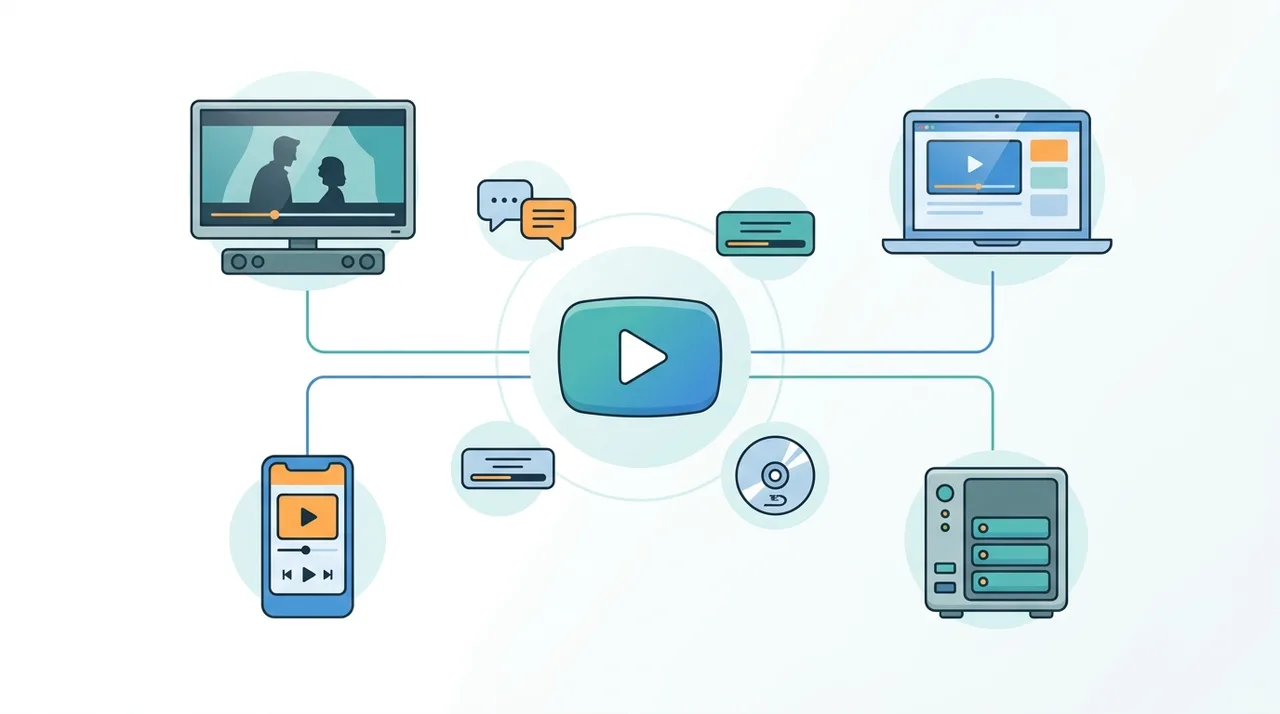
MKV competes with three other widely used containers, each optimized for a different goal. The table below compares flexibility, streaming, and real-world file behavior. To go deeper on the main rival, see what is MP4.
| Feature | MKV | MP4 | WebM | AVI |
|---|---|---|---|---|
| Origin / year | Matroska, 2002 | MPEG/ISO, 2001 | Google, 2010 | Microsoft, 1992 |
| Open standard | Yes, royalty-free | Standardized, some codec licensing | Yes, royalty-free | Yes, but dated |
| Subtitle support | SRT, ASS/SSA, PGS, VobSub | Timed Text only | WebVTT | Very limited |
| Native web streaming | No | Yes | Yes (HTML5) | No |
| Typical 2-hour 1080p file | ~3-8 GB (codec-dependent) | ~2-4 GB (H.264) | ~1.5-3 GB (VP9) | ~6-12 GB (older codecs) |
| Device playback | Player/server needed on many | Near-universal | Browsers + Android | Windows-centric, declining |
How to Convert MKV to Other Formats
- 1
Analyze your MKV file
Before converting, check what tracks your MKV contains. Note the video codec, audio tracks and their languages, and subtitle tracks you want to preserve.
- 2
Choose the right output format
If you need maximum device compatibility, choose MP4. If you need to keep all subtitle formats and audio tracks, consider keeping MKV or converting only the video codec.
- 3
Upload to WeLoveConvert
Use a browser-based converter to process your MKV file locally. This keeps large video files private and avoids slow server uploads.
- 4
Select tracks and quality
Choose which audio and subtitle tracks to include in the output. Set the video quality, keeping in mind that re-encoding is only needed if changing the video codec.
- 5
Download your converted file
Download the result and verify that all desired tracks are present and playback works correctly on your target device.
Recommended MKV Muxing Settings
When creating MKV files, these settings ensure maximum compatibility and quality.
H.264 for maximum player compatibility, H.265 for smaller files when your player supports it. Both work excellently in MKV.
Use FLAC for lossless archival quality or AAC for good quality at smaller sizes. MKV supports both natively.
SRT for simple text subtitles, ASS/SSA when you need styled subtitles with fonts, colors, and positioning.
Matroska XML chapters support nested hierarchies and multilingual names, ideal for complex content.
When using ASS subtitles, embed all referenced fonts as MKV attachments to ensure correct rendering on any system.
MKV in the Media Ecosystem
MKV has carved out a dominant position in several areas of the media ecosystem. It is the standard container for Blu-ray rips and high-quality video archives, where its ability to preserve all original audio tracks (including lossless DTS-HD and TrueHD) and subtitle streams is essential. The anime community heavily relies on MKV for its ASS subtitle support, which enables the complex styled subtitles common in fansub releases.
Media server software like Plex, Jellyfin, and Emby natively support MKV files, making them ideal for home media libraries. These servers can transcode MKV on the fly when a client device does not support direct playback, bridging the compatibility gap transparently.
The Matroska project continues active development, with WebM (the web-optimized subset of Matroska used by Google) being the format's most visible derivative. The specification is maintained as an IETF RFC, lending it institutional credibility alongside its community-driven origins. As streaming evolves and new codecs emerge, MKV's codec-agnostic design ensures it will remain relevant as the most flexible video container available.
Frequently Asked Questions
Can I play MKV on a smart TV?
Most modern smart TVs from Samsung, LG, and Sony support MKV playback natively, especially with H.264 video and AAC audio. However, support for exotic codecs or multiple subtitle tracks varies by manufacturer. Using a media player like Chromecast or a Plex server ensures reliable playback.
Is MKV the same as Matroska?
MKV (.mkv) is the file extension for Matroska video files. Matroska is the name of the container format specification. The Matroska family also includes .mka for audio-only files and .mk3d for stereoscopic 3D video.
Why is MKV popular for anime?
MKV supports ASS/SSA subtitles with full styling capabilities including custom fonts, colors, positioning, and animations. Anime fansubbing groups need these features for karaoke effects, typesetting signs, and styled dialogue. MKV also lets them embed the required fonts directly in the file.
Does MKV support 4K HDR?
Yes. MKV fully supports 4K and 8K resolutions with HDR metadata. It is the standard container for 4K Blu-ray rips, storing H.265 video with HDR10 or Dolby Vision metadata alongside lossless audio formats like DTS:X and Dolby Atmos.
Is MKV lossless?
MKV is a container, not a codec. It can store both lossy and lossless content. You can put lossless video (like FFV1 or HuffYUV) and lossless audio (like FLAC) inside MKV for truly lossless archival, or use lossy codecs for practical file sizes.
Can I convert MKV to MP4 without losing quality?
If the MKV file contains H.264 video and AAC audio, you can remux it to MP4 without re-encoding, preserving 100% of the original quality in seconds. If the codecs are incompatible with MP4, re-encoding is necessary, which may cause minor quality loss.
Why do some devices not play MKV?
Some devices, particularly older Apple products and certain set-top boxes, do not include MKV container support in their firmware. The video and audio codecs inside may be fully supported, but the device cannot parse the MKV container structure. Remuxing to MP4 often solves this without quality loss.
How do I add subtitles to an MKV file?
Use a tool like MKVToolNix to mux subtitle files (SRT, ASS, or others) into an existing MKV file. This process does not re-encode the video and completes in seconds. You can add multiple subtitle tracks in different languages and set default and forced flags.
Is MKV better quality than MP4?
Quality comes from the codec and bitrate, not the container. An MKV and an MP4 holding the same H.264 video at the same bitrate look identical. MKV only seems higher quality because it is often used to store Blu-ray rips with lossless audio and high-bitrate video, while MP4 is more commonly compressed for streaming.
How do I open an MKV file on Windows or Mac?
On Windows, VLC Media Player and MPC-HC open MKV files natively; Windows 11 can play many MKVs in the built-in Media Player. On Mac, QuickTime does not support MKV, but VLC or IINA do. For maximum compatibility on Apple devices, remux the MKV to MP4 first, which keeps the original quality.
Why are MKV files so large?
MKV itself adds almost no overhead. Files are large because MKV is typically used to store high-bitrate video plus multiple audio tracks and lossless soundtracks such as DTS-HD or TrueHD. Dropping unused language tracks or re-encoding to H.265 dramatically reduces size while keeping the same container.
MKV is the most flexible video container available, unmatched for multiple audio tracks, subtitle formats, chapters, and lossless archival. MP4 still wins on streaming and universal device playback, so the smartest workflow is to keep MKV as your master archive and produce compatible copies when you need them. When a device refuses to play your file, a quick lossless MKV to MP4 conversion preserves quality and solves it in seconds.