
MKV in MP4 konvertieren: Vollständige Anleitung
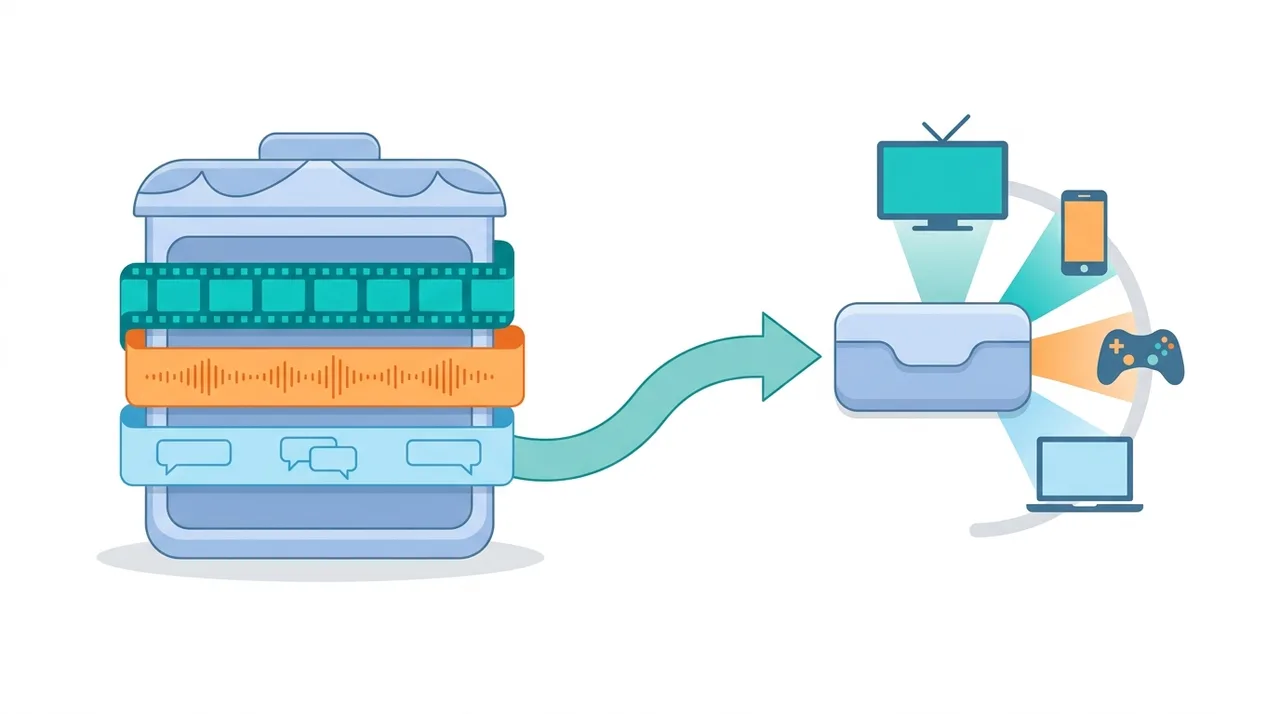
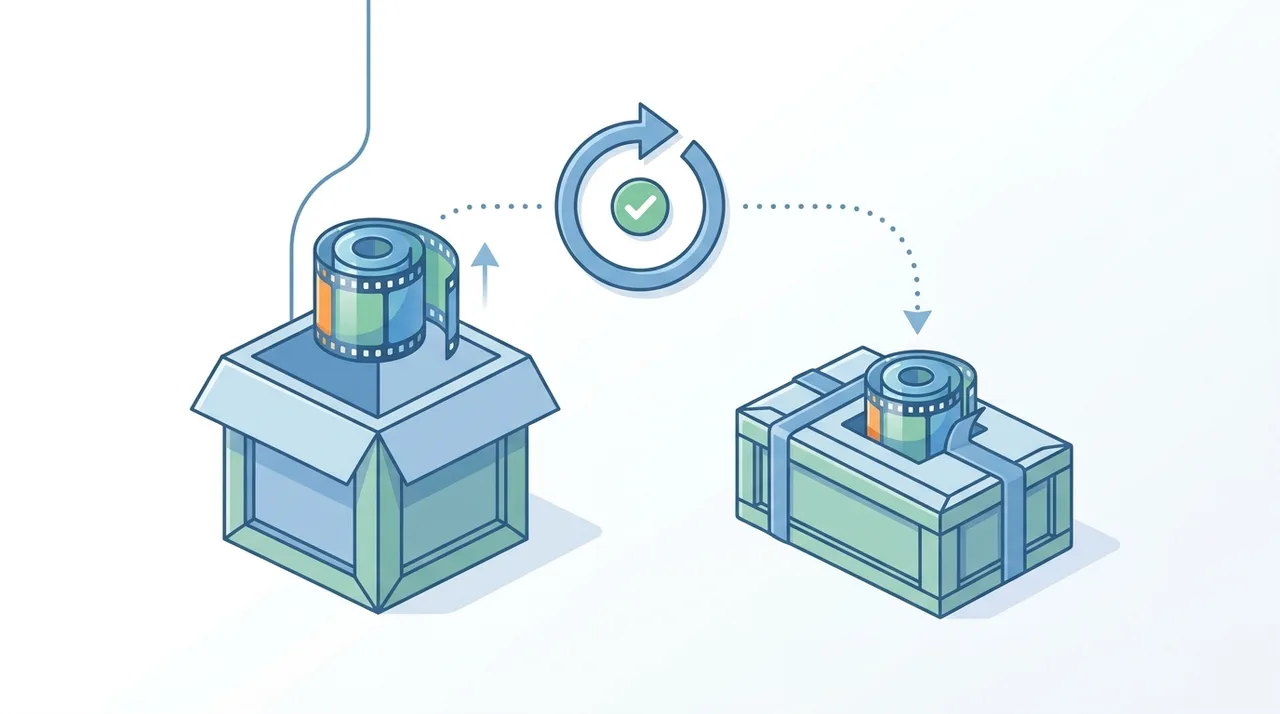
Beim Konvertieren von MKV zu MP4 wird der Container gewechselt, der dein Video umhüllt, damit es auf Smartphones, Smart-TVs, Konsolen und Web-Playern läuft, die Matroska-Dateien ablehnen. Der schnellste Weg ist Remuxing: Enthält dein MKV bereits H.264- oder H.265-Video mit AAC-Audio, werden die Spuren einfach verlustfrei in MP4 neu verpackt — in Sekunden. Ist das Audio DTS oder AC3, wird nur diese Spur zu AAC neu kodiert. Das gesamte Video muss nur bei seltenen Codecs wie VP9 neu kodiert werden. Dieser Leitfaden erklärt, wann welche Methode greift und wie du die richtige Audiospur, Untertitel und Kapitel behältst.
Jetzt ausprobieren — Kostenlos →Dieser Leitfaden beschreibt Formatfunktionen und Einstellungen verschiedener Programme. In WeLoveConvert wählen Sie das Zielformat und bei unterstützten Bildern die Qualität. Codec, Bitrate, verlustfreies WebP und TIFF-Seitenauswahl sind in der Oberfläche nicht einstellbar. Vergleichen Sie das Ergebnis und behalten Sie das Original.
summarizeDas Wichtigste in Kürze
- check_circleRemuxing von MKV zu MP4 ist sofort und verlustfrei, wenn das Video H.264/H.265 und das Audio AAC ist — nichts wird neu kodiert.
- check_circleDTS- und AC3-Audio muss zu AAC umkodiert werden, da viele MP4-Player auf Mobilgeräten diese Codecs ablehnen.
- check_circleMP4 sichert universelle Wiedergabe (iOS, Android, Smart-TVs, Konsolen) sowie HLS- und DASH-Streaming, das MKV nicht bietet.
- check_circleStilisierte ASS/SSA-Untertitel werden zu einfachem SRT reduziert oder müssen eingebrannt werden; wähle Spur und Sprache vor dem Konvertieren.
Vorteile und Grenzen der Konvertierung zu MP4
check_circleWarum MKV zu MP4 konvertieren
- addLäuft überall — iOS, Android, Smart-TVs, Konsolen und Schnittprogramme
- addRemux ist verlustfrei und in Sekunden statt Minuten fertig
- addErmöglicht progressiven Download sowie HLS/DASH-Web-Streaming
- addWeniger Kompatibilitätsprobleme beim Teilen oder Hochladen
- addBehält dieselbe Videobitrate und Auflösung wie die Quelle
cancelWas du verlieren kannst
- removeDTS/AC3-Audio wird zu AAC neu kodiert (kleiner Qualitätsverlust)
- removeStilisierte ASS/SSA-Untertitel verlieren Schriftart, Farbe und Position
- removeMehrspur-Audio wird von einfachen MP4-Playern unzuverlässig unterstützt
- removeManche MKV-Kapitel und Anhänge werden vereinfacht oder verworfen
Wann (und Warum) MKV zu MP4 Konvertieren
MKV eignet sich hervorragend zum Archivieren, aber MP4 ist das Format, das der Rest der Welt tatsächlich abspielt. Konvertiere, wenn Kompatibilität, Teilen oder Streaming wichtiger sind als die Flexibilität des Containers.
- Dein Smart-TV, deine PlayStation, Xbox oder dein Handy öffnet die MKV-Datei nicht nativ und du musst sie jetzt abspielen
- Du lädst zu YouTube, Instagram oder einer anderen Plattform hoch, die für zuverlässige Aufnahme MP4 bevorzugt
- Du brauchst adaptives Web-Streaming (HLS/DASH), das MP4 nativ unterstützt und MKV nicht
- Du schneidest in Software mit schwachem MKV-Import — eine schnelle MKV-zu-MP4-Konvertierung legt den Clip direkt auf die Timeline
- Du willst zusätzliche Sprach- und Untertitelspuren entfernen, um eine saubere, leichte Datei für ein bestimmtes Publikum zu erhalten
- Du willst nur die Tonspur extrahieren und danach lieber MP4 zu MP3 aus einer kompatiblen Datei konvertieren
MKV vs MP4 vs WebM: Welcher Container als Ziel
Alle drei sind Container, keine Codecs, daher ist die Videoqualität bei gleicher Bitrate identisch. Der Unterschied ist die Reichweite. Siehe unsere MP4-Erklärung für Codec-Details.
| Feature | MKV (Quelle) | MP4 (Ziel) | WebM (Alt.) |
|---|---|---|---|
| Gerätekompatibilität | Begrenzt (PC, einige TVs) | Universal | Vor allem Browser |
| Typische 1080p-Filmgröße | 4–8 GB | 4–8 GB (gleich) | 3–6 GB |
| Erlaubte Audio-Codecs | Beliebig (DTS, AC3, AAC...) | AAC, AC3, ALAC | Opus, Vorbis |
| Untertitel-Unterstützung | ASS/SSA, SRT, PGS | SRT, TX3G (einfach) | WebVTT |
| Streaming (HLS/DASH) | Nein | Ja | Nur DASH |
| Remux-Zeit aus MKV | — | Sekunden (verlustfrei) | Meist Neukodierung |
Den aktuellen WeLoveConvert-Ablauf verwenden
- 1
Ausgabe wählen
Wählen Sie die MKV-Datei auf Ihrem Gerät, fahren Sie zur Konfiguration fort und bestätigen Sie MP4 als Zielformat. Bewahren Sie das Original unverändert auf.
- 2
Lokal konvertieren
Lassen Sie den Tab während der Verarbeitung geöffnet. Die Engine wird möglicherweise beim ersten Einsatz heruntergeladen. Große Dateien und inkompatible Quellcodecs können an Speichergrenzen oder der Decoder-Unterstützung des Browsers scheitern.
- 3
Herunterladen und prüfen
Laden Sie die fertige MP4-Datei herunter und öffnen Sie sie in der Zielanwendung. Prüfen Sie Inhalt, Dateigröße und gegebenenfalls Dauer, Ton, Abmessungen und Transparenz. Ein Formatwechsel garantiert keine kleinere Datei.
Verfügbare Einstellungen in diesem Konverter
Wählen Sie das Zielformat. Die Website verwendet ein automatisches Kodierungsprofil ohne manuelle Auswahl von Codec, Bitrate, Auflösung, Bildrate, Remux, Audiospur oder Untertiteln. Testen Sie zunächst eine kurze Quelle im vorgesehenen Player. Die Konvertierung kann Qualität verlieren; nicht jeder Codec eines unterstützten Containers lässt sich decodieren. Bewahren Sie die Quelle für Bearbeitung und Archivierung auf.
Häufige Probleme bei der MKV-zu-MP4-Konvertierung
Audio liegt in DTS/AC3 vor und läuft nicht auf Mobilgeräten
DTS- und AC3-Audio werden im MP4-Container auf den meisten Mobilgeräten nicht unterstützt. Kodieren Sie die Tonspur während der Konvertierung in AAC-LC bei 192–256 kbps neu.
Stilisierte Untertitel (ASS/SSA) haben Formatierung verloren
Der aktuelle Ablauf wählt das Kodierungsprofil automatisch. Bitrate, CRF, Abtastrate, Bittiefe, Kanäle, Remux, Untertitel und Audiospuren sind hier nicht auswählbar. Bewahren Sie das Original auf und prüfen Sie die gespeicherte Ausgabe in der Zielanwendung. Verlustfreie Konvertierung ist nicht garantiert.
Nur eine Tonspur in der Ausgabe
Einige Konverter verarbeiten standardmäßig nur die erste Tonspur. Wählen Sie explizit mehrere Tonspuren aus, sofern Ihr Zielplayer Mehrspur-MP4-Wiedergabe unterstützt.
Ausgabedatei wird mit falscher Audiosprache abgespielt
Der Konverter hat möglicherweise die falsche Standard-Tonspur gewählt. Geben Sie die gewünschte Tonspur über ihren Index oder Sprach-Tag während der Konvertierung an.
Konvertierung schlägt bei MKV mit HEVC + 10-Bit-Farbe fehl
Manche Konverter haben Probleme mit 10-Bit-HEVC (üblich bei hochwertigen Anime- und HDR-Inhalten). Verwenden Sie einen Konverter, der 10-Bit-Farbtiefe unterstützt, oder kodieren Sie in 8-Bit-H.264 um, falls Zielgeräte keine 10-Bit-Unterstützung haben.
Kapitelmarken in der MP4-Ausgabe fehlen
Nicht alle Konverter erhalten Kapitelinformationen. Verwenden Sie ein Tool, das das Kopieren von Kapiteln aus MKV nach MP4 explizit unterstützt, oder fügen Sie Kapitel nachträglich manuell hinzu.
Wann sollten Sie MKV in MP4 konvertieren?
Die Konvertierung von MKV in MP4 wird in diesen Situationen empfohlen:
- Ihr Smart-TV, Ihre Spielekonsole oder Ihr Media-Player unterstützt MKV-Wiedergabe nicht nativ
- Sie möchten das Video auf eine Social-Media-Plattform oder einen Video-Hosting-Dienst hochladen, der nur MP4 akzeptiert
- Sie wollen das Video von einem Webserver streamen, da MP4 besseren progressiven Download und adaptive Streaming-Unterstützung bietet
- Sie müssen das Video in Software bearbeiten, die nur eingeschränkten oder keinen MKV-Import unterstützt
- Sie teilen das Video mit jemandem, dessen Gerät oder Player MKV-Dateien nicht handhaben kann
- Sie möchten die Anzahl der Audio-/Untertitelspuren reduzieren, um die Datei für ein bestimmtes Publikum zu vereinfachen
Häufig gestellte Fragen
Kann ich MKV verlustfrei in MP4 konvertieren?
Der aktuelle Ablauf wählt das Kodierungsprofil automatisch. Bitrate, CRF, Abtastrate, Bittiefe, Kanäle, Remux, Untertitel und Audiospuren sind hier nicht auswählbar. Bewahren Sie das Original auf und prüfen Sie die gespeicherte Ausgabe in der Zielanwendung. Verlustfreie Konvertierung ist nicht garantiert.
Warum sind MKV-Dateien so groß?
Der aktuelle Ablauf wählt das Kodierungsprofil automatisch. Bitrate, CRF, Abtastrate, Bittiefe, Kanäle, Remux, Untertitel und Audiospuren sind hier nicht auswählbar. Bewahren Sie das Original auf und prüfen Sie die gespeicherte Ausgabe in der Zielanwendung. Verlustfreie Konvertierung ist nicht garantiert.
Verliere ich Untertitel beim Konvertieren von MKV zu MP4?
Der aktuelle Ablauf wählt das Kodierungsprofil automatisch. Bitrate, CRF, Abtastrate, Bittiefe, Kanäle, Remux, Untertitel und Audiospuren sind hier nicht auswählbar. Bewahren Sie das Original auf und prüfen Sie die gespeicherte Ausgabe in der Zielanwendung. Verlustfreie Konvertierung ist nicht garantiert.
Kann ich mehrere Tonspuren in MP4 behalten?
MP4 unterstützt technisch mehrere Tonspuren, die Geräte- und Player-Unterstützung variiert jedoch. Die meisten Mobilgeräte und einfachen Player erkennen nur die erste Tonspur. Für garantierten Mehrsprachsupport speichern Sie separate MP4-Dateien oder nutzen einen Player wie VLC.
Was passiert mit DTS-Audio während der Konvertierung?
DTS-Audio muss für MP4-Kompatibilität in AAC umkodiert werden, also von verlustbehaftet zu verlustbehaftet. Verwenden Sie 256 kbps AAC für die beste Qualität beim Heruntermischen von 5.1-Surround auf Stereo.
Ist MKV oder MP4 besser für die Qualität?
Der aktuelle Ablauf wählt das Kodierungsprofil automatisch. Bitrate, CRF, Abtastrate, Bittiefe, Kanäle, Remux, Untertitel und Audiospuren sind hier nicht auswählbar. Bewahren Sie das Original auf und prüfen Sie die gespeicherte Ausgabe in der Zielanwendung. Verlustfreie Konvertierung ist nicht garantiert.
Wie lange dauert die MKV-zu-MP4-Konvertierung?
Der aktuelle Ablauf wählt das Kodierungsprofil automatisch. Bitrate, CRF, Abtastrate, Bittiefe, Kanäle, Remux, Untertitel und Audiospuren sind hier nicht auswählbar. Bewahren Sie das Original auf und prüfen Sie die gespeicherte Ausgabe in der Zielanwendung. Verlustfreie Konvertierung ist nicht garantiert.
Kann ich MKV mit HDR in MP4 konvertieren?
Der aktuelle Ablauf wählt das Kodierungsprofil automatisch. Bitrate, CRF, Abtastrate, Bittiefe, Kanäle, Remux, Untertitel und Audiospuren sind hier nicht auswählbar. Bewahren Sie das Original auf und prüfen Sie die gespeicherte Ausgabe in der Zielanwendung. Verlustfreie Konvertierung ist nicht garantiert.
Verringert die Konvertierung von MKV zu MP4 die Dateigröße?
Der aktuelle Ablauf wählt das Kodierungsprofil automatisch. Bitrate, CRF, Abtastrate, Bittiefe, Kanäle, Remux, Untertitel und Audiospuren sind hier nicht auswählbar. Bewahren Sie das Original auf und prüfen Sie die gespeicherte Ausgabe in der Zielanwendung. Verlustfreie Konvertierung ist nicht garantiert.
Hat MP4 eine geringere Qualität als MKV?
Der aktuelle Ablauf wählt das Kodierungsprofil automatisch. Bitrate, CRF, Abtastrate, Bittiefe, Kanäle, Remux, Untertitel und Audiospuren sind hier nicht auswählbar. Bewahren Sie das Original auf und prüfen Sie die gespeicherte Ausgabe in der Zielanwendung. Verlustfreie Konvertierung ist nicht garantiert.
Kann VLC MKV zu MP4 konvertieren, oder ist ein Online-Konverter besser?
Der aktuelle Ablauf wählt das Kodierungsprofil automatisch. Bitrate, CRF, Abtastrate, Bittiefe, Kanäle, Remux, Untertitel und Audiospuren sind hier nicht auswählbar. Bewahren Sie das Original auf und prüfen Sie die gespeicherte Ausgabe in der Zielanwendung. Verlustfreie Konvertierung ist nicht garantiert.
Beim Konvertieren von MKV zu MP4 tauschst du etwas Container-Flexibilität gegen eine Wiedergabe, die überall funktioniert. Enthält dein MKV H.264/H.265-Video und AAC-Audio, wähle Remuxing für ein sofortiges, verlustfreies Ergebnis; kodiere nur das Audio (DTS/AC3 zu AAC) oder den seltenen inkompatiblen Video-Codec neu, wenn es nötig ist. Lege Audiospur, Untertitel und Kapitel vorab fest, starte eine kostenlose MKV-zu-MP4-Konvertierung und prüfe die Ausgabe, bevor du das Original löschst.
Bereit, Ihre Dateien zu konvertieren? Probieren Sie unseren kostenlosen Online-Konverter aus.
Jetzt ausprobieren — Kostenlos →