
How to convert TIFF to PNG: steps, pages and quality checks
Need a PNG copy of a scanned illustration or a TIFF image for a website? Start with the TIFF to PNG converter. It processes selected files in your browser and produces one PNG per input file. A multi-page TIFF produces only its first page; there is no page selector. Keep the original TIFF, especially when it contains other pages, editable layers or color information you need later.
Try It Now — Free →This guide describes format capabilities and settings available in different programs. In WeLoveConvert you select the output format and, for supported images, quality. Codec, bitrate, lossless WebP mode and TIFF page selection are not available in the interface. Compare the result and keep your original.
Convert a TIFF file in four steps
- 1
Select your TIFF or TIF
Open the converter and choose Select Files. Both extensions identify TIFF files; renaming another format to .tif does not convert it. You can select several images together. Start with one small file if you are testing an unfamiliar scan.
- 2
Check that PNG is selected
The configuration screen lists the files and their sizes. PNG is already selected on this conversion page. Remove unwanted files or use Add More. PNG has no quality slider, bit-depth selector, page selector or ICC profile setting in this tool.
- 3
Start conversion
Choose Convert and keep the tab open. TIFF decoding uses FFmpeg through WebAssembly. The processing engine must load on first use, so that first conversion can take longer. Files are processed locally, but the website still loads application assets and uses analytics and advertising subject to consent.
- 4
Download and inspect the PNG
Use the download link beside each successful result. Open the saved file in your usual image viewer. Compare dimensions, small text, orientation, color and transparent edges with the source. A completed screen alone is not a substitute for checking the downloaded image.
What happens to multiple pages and layers?
The current implementation requests a single output frame. A two-page scan therefore does not become two PNG files, and there is no control for choosing page two. To export every page, first use your scanner software or an image editor to save the required pages as separate images, then convert those files.
A TIFF can also contain application-specific layer data. This converter is not a layer editor and does not guarantee reconstruction of blend modes or hidden layers. Export a flattened copy from the application that created the artwork when its appearance depends on those features. Keep the editable master separately.
Our small browser test
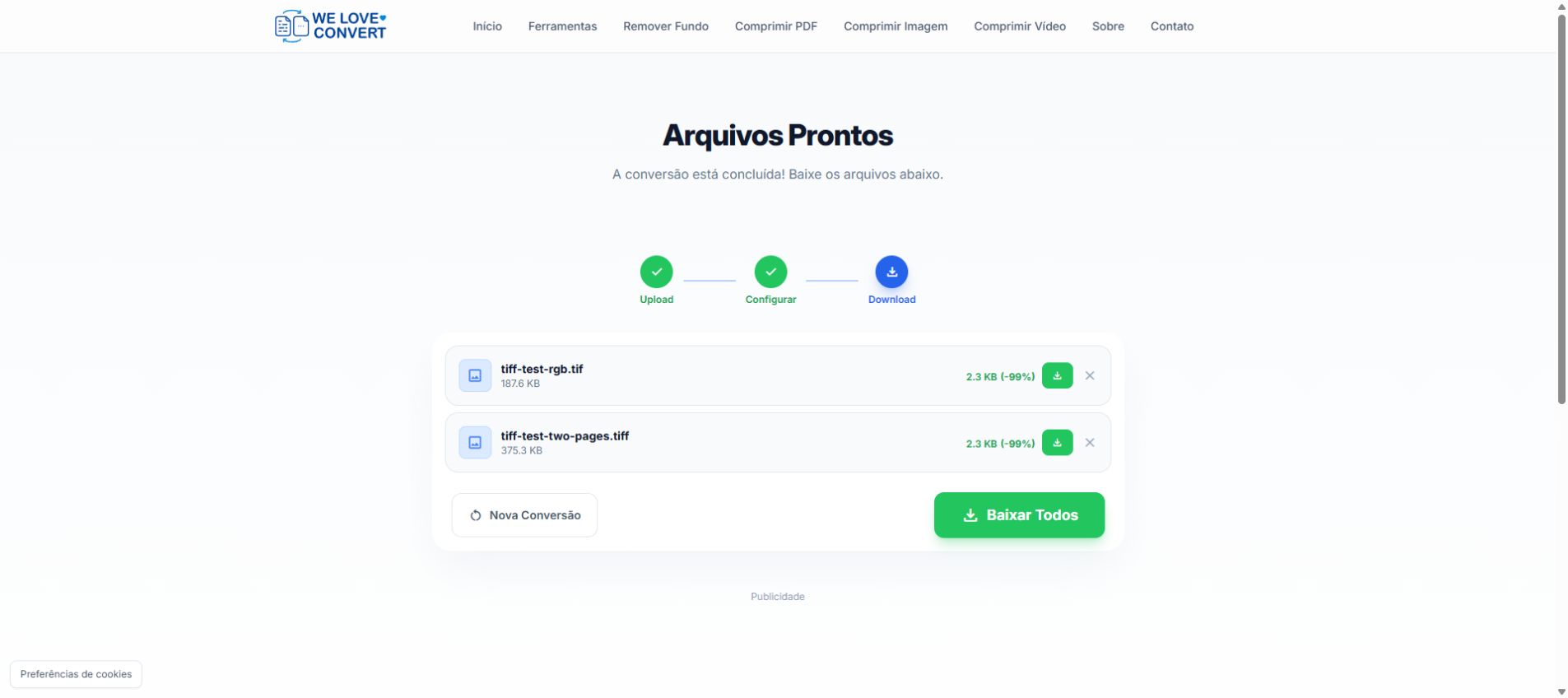
On 8 October 2026 we tested the public converter in Chrome on Windows with two synthetic RGB TIFF files, each 320 × 200 pixels. One contained a white background, a navy border and text; the other contained that same first page plus an orange second page. Their measured input sizes were 192,140 and 384,288 bytes. The interface reported a successful PNG result of 2.3 KB for each input and displayed one download link per file.
The screenshot records the result screen, not a pixel-by-pixel comparison of saved output. These simple, uncompressed examples are not a compression benchmark for photographs, large scans, CMYK, transparency or 16-bit files. The identical displayed sizes do not prove identical pixels or preserved metadata.
Lossless PNG does not mean a complete TIFF archive
PNG uses lossless compression, but that describes storage of the resulting image. It does not guarantee that all source pages, layers, color profiles or metadata survive conversion. This tool provides no manual color-management or bit-depth controls. Do not assume every TIFF is reduced to 8 bits, or that a 16-bit source is preserved unchanged: inspect the saved file when bit depth matters.
For color-critical printing, export an appropriate RGB copy using the original application and compare it in a color-managed viewer. For scientific measurements or archival masters, retain the TIFF and validate the required data with a suitable specialist workflow. A visually similar preview is insufficient evidence of numerical equivalence.
Troubleshooting TIFF to PNG
Only one page appears
This tool exports the first page. Separate other pages before converting; there is no hidden page-selection setting.
Colors or transparency look different
Check the source in its original application and compare the saved PNG on both light and dark backgrounds. The tool has no ICC-profile or alpha-premultiplication switch. Export a prepared RGB/RGBA copy when the source needs specialist handling.
Conversion fails or the tab becomes slow
Try one smaller TIFF and close other memory-heavy tabs. A small file size does not guarantee low decoded memory use. If that file still fails, re-export a standard RGB TIFF from the source application. Renaming its extension cannot repair unsupported or damaged image data.
PNG is larger than expected
Size depends on image content and source compression. There is no fixed reduction ratio. For photographs where transparency is unnecessary, compare a TIFF to JPG copy. For website delivery, also consider PNG to WebP, checking the visual result.
Related tools for smaller sharing copies
Size depends on image content and source compression. There is no fixed reduction ratio. For photographs where transparency is unnecessary, compare a TIFF to JPG copy. For website delivery, also consider PNG to WebP, checking the visual result.
Format references
For the PNG format itself, see the W3C PNG specification. FFmpeg documents its output-frame limit in the FFmpeg command-line documentation. Those references describe formats and processing options; the steps above describe the controls actually available in WeLoveConvert.
Frequently Asked Questions
Does .tif work as well as .tiff?
Both extensions are accepted for TIFF input. The underlying file still needs to contain supported TIFF data.
Can I choose the second page?
No. This converter currently exports the first page. Save other pages separately in your scanning or editing application first.
Will the PNG always be smaller?
No. Our small synthetic test compressed well, but its result cannot predict the size of a photograph or an already compressed TIFF.
Can I delete the TIFF after conversion?
This browser conversion does not offer metadata retention. EXIF dates, GPS coordinates, camera settings and color profiles are not guaranteed to survive. Keep the original for archiving and check orientation in the saved image.
Use TIFF to PNG for a convenient sharing copy of a supported TIFF image. Check the first-page limitation before starting, inspect the downloaded result and retain your original master.
Ready to convert your files? Try our free online converter.
Try It Now — Free →