Cómo Convertir AVI a MP4: Guía Completa
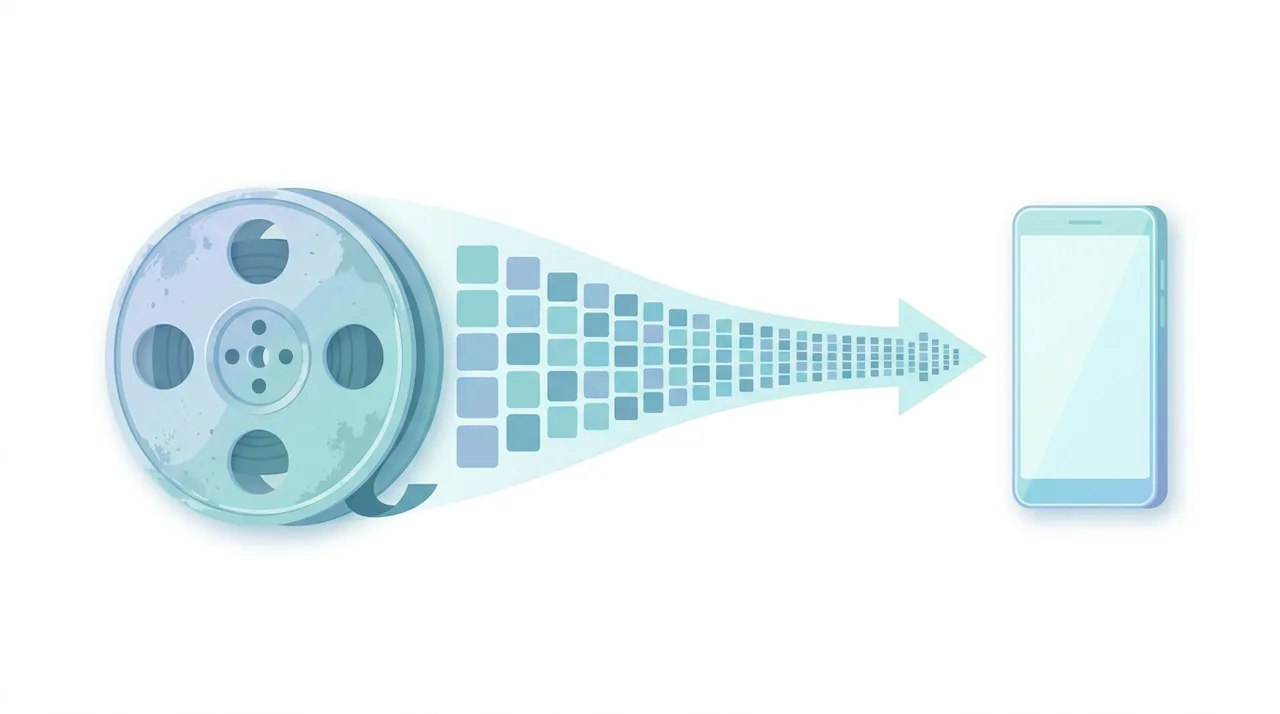
Convertir AVI a MP4 recodifica tu video en el contenedor MP4 moderno y universal, casi siempre con el códec H.264 reemplazando al antiguo DivX o Xvid. El resultado se reproduce de forma nativa en teléfonos, smart TVs, navegadores y editores, reduciendo el archivo entre un 40 y un 80 por ciento con la misma calidad. Lo haces para escapar de los problemas de reproducción del AVI, habilitar el streaming y recuperar espacio. La conversión es una recodificación, no un simple cambio de nombre, así que eliges un nivel de calidad (CRF) y un códec de audio (AAC) durante el proceso. Esta guía se centra en cuándo vale la pena el cambio, cómo se compara el MP4 con las alternativas y qué compensaciones considerar primero.
Pruébalo Gratis →Esta guía describe funciones de los formatos y ajustes disponibles en distintos programas. En WeLoveConvert eliges el formato de salida y, para imágenes compatibles, la calidad. La interfaz no ofrece selección de códec, tasa de bits, WebP sin pérdidas ni páginas TIFF. Compara el resultado y conserva el original.
summarizePuntos Clave
- check_circleAVI a MP4 es una recodificación completa: el video H.264 más el audio AAC reemplazan los códecs heredados dentro del antiguo contenedor AVI, no es solo cambiar la extensión.
- check_circleEspera archivos entre un 40 y un 80 por ciento más pequeños con la misma calidad visual; el AVI sin comprimir o de origen DV logra el mayor ahorro.
- check_circleConvierte cuando necesites streaming, reproducción móvil, subtítulos incrustados o copias de seguridad más pequeñas; el MP4 admite los tres, el AVI no admite ninguno bien.
- check_circleUsa CRF 20 para uso diario y CRF 17 para másteres de archivo; desentrelaza cualquier fuente 480i/576i antes de codificar para evitar artefactos de peine.
Cuándo (y Por Qué) Convertir AVI a MP4
El MP4 gana en casi todo uso moderno del material, pero una recodificación siempre cuesta algo de calidad y algo de tiempo. Convierte cuando los beneficios de reproducción, uso compartido o almacenamiento superen claramente esa pérdida generacional única.
- Necesitas que el video se reproduzca en teléfonos, tablets, smart TVs o en el navegador sin códecs extra ni apps de terceros. Súbelo a nuestro conversor gratuito y elige MP4.
- Quieres transmitir o subir el archivo. El MP4 con la marca faststart admite reproducción progresiva; el AVI requiere la descarga completa primero. Mira por qué en qué es MP4.
- El almacenamiento es escaso: un AVI DivX de 700MB normalmente se recodifica a un MP4 H.264 de 300-400MB con nitidez igual o mejor.
- Editas en software moderno. La mayoría de los editores manejan bien el MP4, mientras que los códecs antiguos de AVI a menudo fallan al importar o renderizar.
- Estás estandarizando una biblioteca mixta y ya conviertes otras fuentes como MKV a MP4 o MOV a MP4.
- Omite la conversión solo si debes preservar un máster de archivo sin pérdidas o alimentar un flujo de edición heredado que solo acepta AVI.
AVI vs MP4 vs MKV: ¿Qué Contenedor Elegir?
El AVI es la fuente que dejas atrás, el MP4 es el destino casi universal y el MKV es la alternativa flexible cuando necesitas muchas pistas. Las cifras concretas usan una película típica de 90 minutos en 480p.
| Feature | AVI (DivX) | MP4 (H.264) | MKV (H.264) |
|---|---|---|---|
| Tamaño típico 90 min 480p | ~700-900 MB | ~300-400 MB | ~300-420 MB |
| Reproducción en navegador / streaming | No | Sí (faststart) | Limitada |
| Soporte nativo móvil y smart TV | Raro | Universal | Parcial |
| Subtítulos incrustados | Solo externos | SRT, TX3G | SRT, ASS, PGS |
| Múltiples pistas de audio | Limitado | Sí | Excelente |
| Mejor para | Archivos heredados | Uso compartido universal | Bibliotecas multipista |
Usa el flujo actual de WeLoveConvert
- 1
Elige la salida
Selecciona el archivo AVI en el dispositivo, continúa a la configuración y confirma MP4 como destino. Conserva el original sin cambios.
- 2
Convierte localmente
Mantén la pestaña abierta durante el proceso. El motor puede descargarse en el primer uso. Los archivos grandes y los códecs incompatibles pueden fallar por límites de memoria y decodificación del navegador.
- 3
Descarga y comprueba
Descarga el MP4 terminado y ábrelo en la aplicación de destino. Comprueba contenido, tamaño y, cuando corresponda, duración, sonido, dimensiones y transparencia. Cambiar el formato no garantiza un archivo más pequeño.
Controles disponibles en este conversor
Elige el formato de destino. El sitio usa un perfil de codificación automático; no permite seleccionar manualmente códec, bitrate, resolución, frecuencia de fotogramas, remux, pista de audio ni subtítulos. Prueba primero un archivo corto en el reproductor de destino. La conversión puede perder calidad y no todos los códecs de un contenedor compatible se pueden decodificar. Conserva la fuente si necesitas control de edición o archivo.
Problemas Comunes en la Conversión AVI a MP4
El conversor dice "códec no soportado" para el archivo AVI
El AVI puede usar un códec raro o propietario. Prueba un conversor basado en FFmpeg, que soporta virtualmente todos los códecs heredados.
El video convertido tiene líneas de entrelazado
El AVI de origen es entrelazado pero no fue desentrelazado durante la conversión. Reconvierte con el filtro de desentrelazado habilitado.
El audio se reproduce pero el video queda en pantalla negra
El AVI puede usar un códec que el conversor no puede decodificar. Usa una herramienta que soporte la decodificación del códec DV.
El MP4 de salida tiene audio corrupto
Algunos archivos AVI usan formatos de audio no estándar como AC3 o PCM. Establece explícitamente el códec de audio en AAC.
La conversión produce un archivo sin sonido
El AVI puede tener audio MP3 VBR, que algunos conversores manejan mal. Fuerza la recodificación completa del audio a AAC.
Por Qué Convertir Tu Colección AVI a MP4
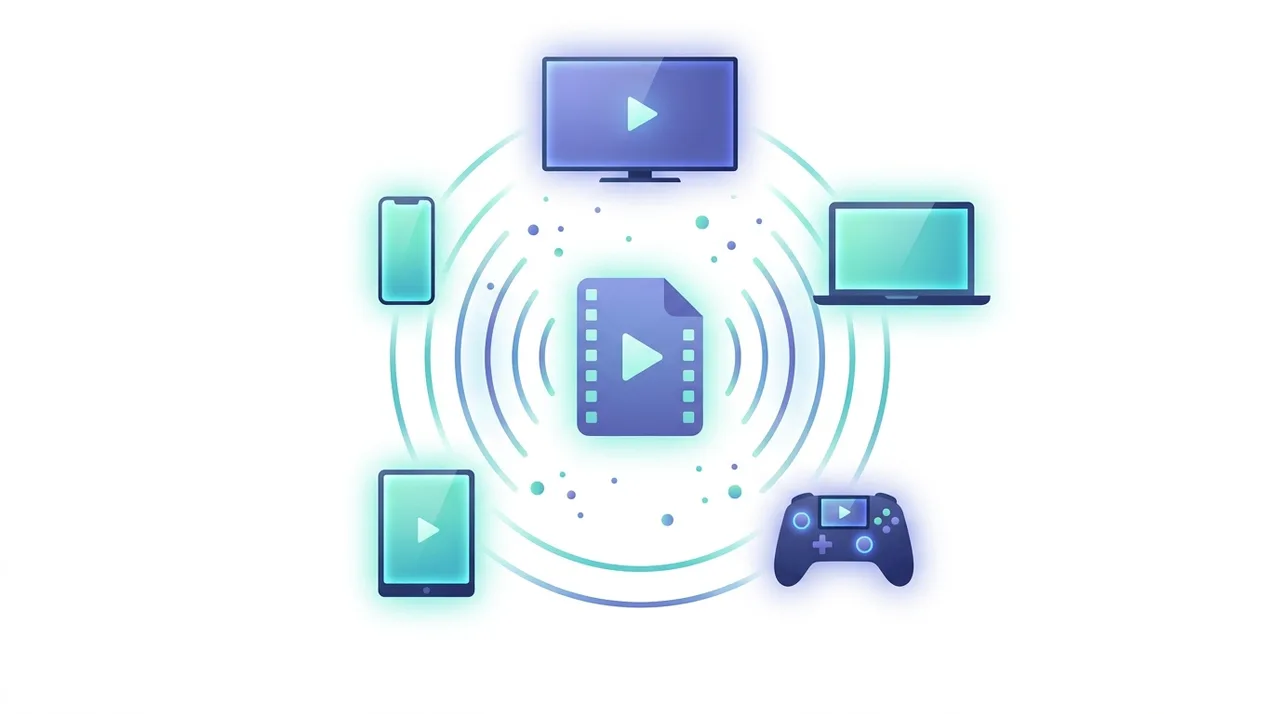
Si tienes una colección de archivos AVI de los años 2000, convertirlos a MP4 es una de las mejores cosas que puedes hacer por tu biblioteca de medios. Los archivos AVI con códecs DivX o Xvid son normalmente 2-5 veces más grandes que los archivos MP4 equivalentes con H.264. Una película AVI de 700MB (el tamaño clásico de CD-R de principios de los 2000) con frecuencia puede recodificarse a un MP4 de 300-400MB con mejor calidad visual. Además del tamaño, los archivos MP4 se reproducen de forma nativa en teléfonos, tablets, smart TVs y consolas de juegos sin necesidad de apps de terceros.
Preguntas Frecuentes
¿Cuánto más pequeño será mi MP4 comparado con el AVI?
Depende del códec del AVI. Los archivos AVI DivX/Xvid normalmente se reducen un 40-60% al recodificarse a MP4 H.264. Los AVI sin comprimir pueden reducirse un 90% o más.
¿Convertir AVI a MP4 mejora la calidad?
No, la conversión no puede mejorar la calidad más allá de la fuente. Sin embargo, preserva la calidad existente mientras reduce dramáticamente el tamaño del archivo.
¿Puedo convertir AVI a MP4 sin perder calidad?
El flujo actual elige automáticamente el perfil de codificación. No permite seleccionar bitrate, CRF, frecuencia de muestreo, profundidad de bits, canales, remux, subtítulos ni pistas de audio. Conserva el original y comprueba la salida guardada en la aplicación de destino; no se garantiza una conversión sin pérdidas.
¿Mi archivo AVI es muy antiguo y usa un códec desconocido. Puedo convertirlo?
Muy probablemente sí. Las herramientas basadas en FFmpeg soportan cientos de códecs heredados, incluyendo Indeo, Cinepak, Motion JPEG y DV.
¿Debo conservar los archivos AVI originales después de convertir?
Si los archivos contienen contenido irremplazable, mantén copias de seguridad hasta verificar que las conversiones MP4 son satisfactorias.
¿Puedo preservar subtítulos al convertir AVI a MP4?
El flujo actual elige automáticamente el perfil de codificación. No permite seleccionar bitrate, CRF, frecuencia de muestreo, profundidad de bits, canales, remux, subtítulos ni pistas de audio. Conserva el original y comprueba la salida guardada en la aplicación de destino; no se garantiza una conversión sin pérdidas.
¿AVI soporta video HD?
Técnicamente sí, pero AVI fue diseñado antes de que el HD fuera común y carece de características para la entrega HD eficiente.
¿Cuánto tiempo tarda la conversión de AVI a MP4?
Depende del tamaño y los ajustes. Una película típica de 90 minutos en AVI 480p se convierte a MP4 en 3-8 minutos en hardware moderno.
Convertir AVI a MP4 moderniza tu biblioteca de video, reduce dramáticamente el tamaño de los archivos y asegura una compatibilidad universal de reproducción. Usa H.264 con CRF 20 para uso general o CRF 17 para calidad de archivado. Habilita el desentrelazado para fuentes entrelazadas antiguas y verifica siempre que la salida se reproduzca correctamente.
¿Listo para convertir tus archivos? Prueba nuestro convertidor online gratuito.
Pruébalo Gratis →