
What Is MOV? Apple's QuickTime Video Format Explained
MOV is Apple's QuickTime multimedia container format, introduced in 1991, that bundles video, audio, timecode, and effects tracks into one file using an atom-based structure. It is the default recording format on iPhone and iPad and the backbone of professional editing in Final Cut Pro, where it carries high-quality codecs like Apple ProRes. Because the QuickTime File Format was the direct ancestor of MP4, the two share nearly identical internals. MOV shines in Apple-centric and post-production workflows but is less universally compatible than MP4, so converting MOV to MP4 is common for everyday sharing and cross-platform playback.
This guide describes format capabilities and settings available in different programs. In WeLoveConvert you select the output format and, for supported images, quality. Codec, bitrate, lossless WebP mode and TIFF page selection are not available in the interface. Compare the result and keep your original.

summarizeKey Takeaways
- check_circleMOV is Apple's QuickTime container (1991); it stores video, audio, timecode, and effects tracks in one atom-based file.
- check_circleIt is the native iPhone/iPad recording format and the standard wrapper for Apple ProRes in pro editing.
- check_circleMOV and MP4 share the same structural DNA, so H.264/HEVC MOV files often remux to MP4 losslessly in seconds.
- check_circleOutside Apple, MOV support is uneven and ProRes files are huge, so MP4 is better for web and cross-platform sharing.
How the QuickTime MOV Format Works
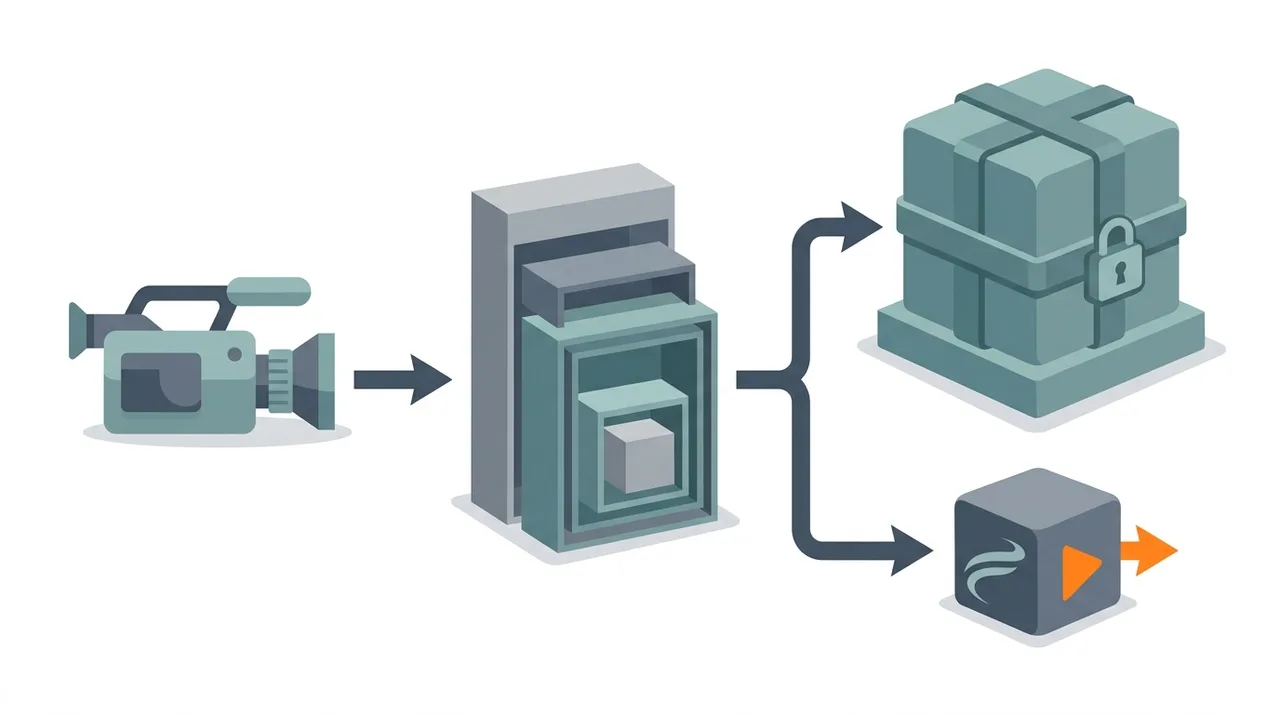
MOV uses an atom-based (also called box-based) hierarchical structure to organize media data. Each atom has a type identifier, a size field, and a data payload that can contain either raw media data or nested child atoms. The top-level moov atom stores all metadata including track descriptions, timing tables, and codec parameters, while mdat atoms contain the actual compressed media samples.
This architecture was groundbreaking when Apple introduced it in 1991 and later became the foundation for the ISO Base Media File Format (ISOBMFF), which in turn gave rise to MP4, 3GP, and other modern container formats. As a result, MOV and MP4 are structurally very similar and share most internal mechanisms.
MOV supports a remarkably wide range of codecs. On the video side, it handles everything from H.264 and H.265 to Apple ProRes, ProRes RAW, Apple Intermediate Codec, and Animation codec. For audio, it supports AAC, Apple Lossless (ALAC), PCM, and many others. This flexibility, combined with Apple's professional codec support, makes MOV the standard container in Apple-centric video production pipelines.
MOV Advantages and Limitations
check_circleAdvantages of MOV
- addNative Apple ProRes and ProRes RAW support, the industry standard for editing and color grading.
- addCarries timecode tracks essential to professional broadcast and film pipelines.
- addSupports alpha-channel (transparent) video for motion graphics and compositing.
- addDefault, deeply integrated format across iPhone, iPad, Mac, and Final Cut Pro.
- addReference-movie feature lets one MOV point to external media without re-embedding it.
- addH.264/HEVC MOV files convert to MP4 by remuxing — fast and lossless.
cancelLimitations of MOV
- removeInconsistent Windows/Linux support; Apple discontinued QuickTime for Windows in 2016 over security flaws.
- removeProRes MOV files are enormous, often exceeding 1 GB per minute of 1080p footage.
- removeLimited native browser support makes MOV a poor fit for web delivery.
- removeApple-specific codecs and metadata can fail on non-Apple players, showing black video or no playback.
When to Use MOV (and When Not To)
MOV is the right choice when you are editing inside Apple tools, archiving master-quality footage, or working with codecs and metadata that MP4 cannot fully carry. It is the wrong choice for the open web and mixed-device delivery.
- Keep MOV when editing in Final Cut Pro or working with Apple ProRes / ProRes RAW masters that demand frame-accurate, high-quality footage.
- Use MOV when you need timecode tracks, alpha-channel (transparent) video, or precisely synchronized multi-track audio for broadcast and VFX.
- Stick with MOV for short-term iPhone clips you will edit on a Mac before exporting — no need to convert twice.
- Switch to MP4 for the web, social media, and Android/Windows playback by using our MOV to MP4 converter; see what MP4 is to understand the trade-offs.
- Pick MOV to WebM when targeting open-standard, royalty-free web streaming where bandwidth efficiency matters.
- Avoid MOV for email attachments, embedded site video, or any audience you cannot guarantee is on Apple hardware.
MOV vs MP4 vs WebM: Container Comparison
MOV, MP4, and WebM are all modern containers, but they target different worlds: Apple production, universal delivery, and the open web respectively.
| Feature | MOV | MP4 | WebM |
|---|---|---|---|
| Developer / origin | Apple QuickTime (1991) | MPEG / ISOBMFF (2001) | Google / WebM Project (2010) |
| Typical codecs | ProRes, H.264, HEVC | H.264, HEVC, AV1 | VP9, AV1, Opus |
| ProRes / alpha video | Native support | Rare / limited | Not supported |
| Approx. size, 1 min 1080p | ProRes ~1.5 GB; H.264 ~130 MB | H.264 ~130 MB | VP9 ~90 MB |
| Browser playback | Limited | Universal | Universal (modern browsers) |
| Best for | Apple editing, mastering | Sharing, devices, web | Royalty-free web streaming |
How to Convert MOV to MP4 and Other Formats
- 1
Determine the source codec
Check whether your MOV uses H.264, HEVC, or ProRes. MOV files from iPhones typically use H.264 or HEVC, which allows fast remuxing to MP4 without re-encoding.
- 2
Choose your target format
For sharing and web use, MP4 is the best target. For Windows editing, MP4 with H.264 ensures compatibility. For archival, consider keeping the original MOV if it contains ProRes.
- 3
Upload your MOV file
Use WeLoveConvert to upload your MOV file for browser-based conversion. Processing happens locally, keeping your videos private.
- 4
Select quality and settings
If remuxing is possible (H.264/HEVC to MP4), choose it for instant, lossless conversion. Otherwise, select a quality level appropriate for your needs.
- 5
Download and share
Download your converted file ready for any device, platform, or social media service. The original MOV is preserved unchanged.
Troubleshooting MOV Playback Issues
MOV file from iPhone won't play on Windows
The file likely uses HEVC (H.265) codec. Install the HEVC Video Extensions from the Microsoft Store, or convert the MOV to MP4 with H.264 for universal playback.
MOV file is extremely large
The file may be encoded in ProRes or Apple Intermediate Codec, which prioritize editing quality over file size. Convert to H.264 or H.265 in MP4 for a dramatically smaller file suitable for sharing.
Cannot import MOV into Adobe Premiere on Windows
If the MOV uses Apple ProRes, install the Apple ProRes decoder for Windows or convert the file to a compatible format like DNxHD in MKV. Recent versions of Premiere include native ProRes decode support.
Audio plays but video is black in MOV file
The video codec may not be supported by your player. This commonly happens with ProRes or Apple Animation codec on Windows. Install VLC media player or convert the video to H.264.
MOV recording from iPhone has wrong orientation
iPhone MOV files store rotation metadata rather than physically rotating the video. Some players ignore this metadata. Re-encode the video with the rotation applied, or use a player like VLC that respects rotation metadata.
Frequently Asked Questions
Is MOV the same as MP4?
Not exactly, but they are closely related. MP4 was derived from the QuickTime MOV specification and shares the same atom-based structure. The main differences are that MOV supports Apple-specific codecs like ProRes natively and includes features like timecode tracks that MP4 handles differently. For H.264 content, they are functionally interchangeable.
Why does iPhone record in MOV?
Apple designed the iPhone to record in MOV because it is Apple's native container format with deep operating system integration. MOV provides optimal support for iPhone-specific features like HEVC encoding, Dolby Vision HDR, stereo audio, and gyroscope-based stabilization metadata.
Can Windows play MOV files?
Windows can play many MOV files natively through the built-in Movies & TV app, especially those using H.264 video. However, MOV files with Apple-specific codecs like ProRes may require additional software. VLC media player handles virtually all MOV files on Windows.
Is MOV better than MP4 for editing?
In Apple workflows, yes. MOV with ProRes is the preferred format for video editing because ProRes provides consistent quality with every frame being independently decodable, making scrubbing and trimming faster. For cross-platform editing, MP4 with H.264 is more universally compatible.
What is Apple ProRes?
Apple ProRes is a family of lossy video codecs designed for high-quality video editing. ProRes maintains high visual quality with manageable file sizes and is optimized for real-time editing performance. It comes in variants from ProRes 422 Proxy to ProRes 4444 XQ, each balancing quality against file size. ProRes files are typically stored in MOV containers.
Can I upload MOV to YouTube?
Yes, YouTube accepts MOV uploads. YouTube will re-encode the video for streaming regardless of the input format. For optimal quality, upload the highest quality source available. If your MOV is in ProRes, YouTube handles the conversion well.
How do I convert MOV to MP4 without losing quality?
If the MOV file contains H.264 video and AAC audio, you can remux it to MP4 in seconds with zero quality loss since no re-encoding is needed. If the MOV uses HEVC, modern MP4 containers also support HEVC, so remuxing is still possible. Only ProRes MOV files require re-encoding to convert to MP4.
Is MOV going away?
No. MOV remains central to Apple's ecosystem and professional video production. Apple continues to update the QuickTime File Format specification with support for new codecs, HDR formats, and spatial video. As long as Apple devices and professional editing tools exist, MOV will remain relevant.
What does the MOV file extension stand for?
MOV stands for QuickTime Movie. The extension marks a file using Apple's QuickTime File Format (QTFF), a container that can hold video, audio, timecode, subtitle, and effects tracks together. The name reflects its original purpose: storing complete QuickTime 'movies' that bundle synchronized media streams in a single file.
Does converting MOV to MP4 reduce quality?
Not necessarily. If your MOV uses H.264 or HEVC video with AAC audio, it can be remuxed into MP4 with zero quality loss because the streams are copied, not re-encoded. Only when the MOV contains ProRes or another Apple-specific codec does conversion require re-encoding to H.264/HEVC, which involves some quality trade-off in exchange for a far smaller file.
Why are MOV files so much larger than MP4?
Most MOV files that feel huge are encoded in Apple ProRes or Apple Intermediate Codec, which prioritize editing quality and lightly compress every frame independently. A ProRes MOV can exceed 1 GB per minute. An MP4 of the same footage uses H.264 or HEVC inter-frame compression, shrinking it to a fraction of the size. The container itself is not the cause — the codec is.
MOV remains Apple's foundational video format, indispensable for ProRes editing, timecode-driven broadcast work, and the entire iPhone-to-Final-Cut-Pro pipeline. Its strengths are precisely what make it heavy and Apple-bound, so for everyday sharing across devices and the open web, MP4 is the smarter destination. The good news: most iPhone MOV files use H.264 or HEVC and convert in seconds with no quality loss using our MOV to MP4 converter. Keep MOV for mastering, reach for MP4 for distribution.